OpenLDAP+freeRADIUS連携でWindowsでも利用可能な無線LAN認証(WPA2/WPA3-EAP(PEAP, MS-CHAPv2))
TL;DR
この記事は whywaita advent calendar 5日目(遅刻)の記事です。
adventar.org
大遅刻です。遅刻してごめんなさい!!!!
whywaitaと言えばインフラ*1というわけでインフラの話を書きます*2。
LDAPとRADIUSを連携させてWPA2/WPA3-EAPを実現する方法は世の中に多数記事がありますが、世に出回っている方法ではWindows端末に対して安定的にWPA2/WPA3-EAPを提供出来ないとされています。
その原因は、Windowsではユーザ名/パスワード方式を使う場合は標準でPEAP(MS-CHAPv2)を用いるのですが、LDAPで通常作成されるPOSIX Accountの情報ではMS-CHAPv2に必要なNTPasswordを得られないためです。
従来(2016年頃)までは、それらを有機的に結合される「smbldap-tools」というパッケージがあったのですが、現在は更新されておらず使うことが出来ません。
そのため、この記事は、「出来る限り少ない労力で」OpenLDAP+freeRADIUS連携でWindowsでも利用可能な無線LAN認証環境を構築する方法を解説します。
目次
構築手順
なお、以下の手順はUbuntu Server 24.04 で構築した際の手順です。他のディストリビューションは適宜読み替えてください。
- パッケージのインストール(OpenLDAP/freeRADIUS/samba)
- LDAPの構築
- EAP用の証明書発行
- freeRADIUSの設定
- sambaスキーマのOpenLDAPへの登録
- sambaの設定(samba-ad-dc)
- LDAP Account Managerのインストール
- LDAP Account Managerの設定
パッケージのインストール
~$ sudo apt install slapd ldap-utils samba freeradius freeradius-ldap
インストール中にLDAPサーバの管理者パスワードの設定が求められるので、設定すること。
LDAPの構築
ドメインの再設定
まずは現在の設定を slapcat コマンドで確認する。
~$ sudo slapcat
dn: dc=nodomain
objectClass: top
objectClass: dcObject
objectClass: organization
o: nodomain
dc: nodomain
structuralObjectClass: organization
entryUUID: 3e1d49fe-6890-1040-913d-db5a588913ed
creatorsName: cn=admin,dc=nodomain
createTimestamp: 20251208144511Z
entryCSN: 20251208144511.116760Z#000000#000#000000
modifiersName: cn=admin,dc=nodomain
modifyTimestamp: 20251208144511Z
最初はdn が dc=nodomain で登録されているので、適切なドメイン名に変更する。
~$ sudo dpkg-reconfigure slapd
以下は、ドメインを hinananoha.example.com、Organization Nameを hinananoha にした後の slapcat である。
~$ sudo slapcat
dn: dc=hinananoha,dc=example,dc=com
objectClass: top
objectClass: dcObject
objectClass: organization
o: hinananoha
dc: hinananoha
structuralObjectClass: organization
entryUUID: fe0adefa-6a18-1040-9bc6-1b28b1cf31c6
creatorsName: cn=admin,dc=hinananoha,dc=example,dc=com
createTimestamp: 20251210133635Z
entryCSN: 20251210133635.836632Z#000000#000#000000
modifiersName: cn=admin,dc=hinananoha,dc=example,dc=com
modifyTimestamp: 20251210133635Z
user/group organizationUnitの作成
ユーザとグループを格納するouも作成する。
base.ldif ファイルを以下の様に作成する。
dn: ou=people,dc=hinananoha,dc=example,dc=com
objectClass: organizationalUnit
ou: people

dn: ou=groups,dc=hinananoha,dc=example,dc=com
objectClass: organizationalUnit
ou: groups
このファイルでouを作成する。
~$ sudo ldapadd -x -D cn=admin,dc=hinananoha,dc=example,dc=com -W -f base.ldif
Enter LDAP Password:
adding new entry "ou=people,dc=hinananoha,dc=example,dc=com"

adding new entry "ou=groups,dc=hinananoha,dc=example,dc=com"
以下が初期設定が完了した後の slapcat の結果である。
~$ sudo slapcat
dn: dc=hinananoha,dc=example,dc=com
objectClass: top
objectClass: dcObject
objectClass: organization
o: hinananoha
dc: hinananoha
structuralObjectClass: organization
entryUUID: fe0adefa-6a18-1040-9bc6-1b28b1cf31c6
creatorsName: cn=admin,dc=hinananoha,dc=example,dc=com
createTimestamp: 20251210133635Z
entryCSN: 20251210133635.836632Z#000000#000#000000
modifiersName: cn=admin,dc=hinananoha,dc=example,dc=com
modifyTimestamp: 20251210133635Z

dn: ou=people,dc=hinananoha,dc=example,dc=com
objectClass: organizationalUnit
ou: people
structuralObjectClass: organizationalUnit
entryUUID: 0a528b6e-6a1d-1040-918c-5d35bc622ca0
creatorsName: cn=admin,dc=hinananoha,dc=example,dc=com
createTimestamp: 20251210140534Z
entryCSN: 20251210140534.425941Z#000000#000#000000
modifiersName: cn=admin,dc=hinananoha,dc=example,dc=com
modifyTimestamp: 20251210140534Z

dn: ou=groups,dc=hinananoha,dc=example,dc=com
objectClass: organizationalUnit
ou: groups
structuralObjectClass: organizationalUnit
entryUUID: 0a671728-6a1d-1040-918d-5d35bc622ca0
creatorsName: cn=admin,dc=hinananoha,dc=example,dc=com
createTimestamp: 20251210140534Z
entryCSN: 20251210140534.560608Z#000000#000#000000
modifiersName: cn=admin,dc=hinananoha,dc=example,dc=com
modifyTimestamp: 20251210140534Z
EAP用の証明書発行
EAP用にサーバ証明書が必要なため、作成する。
作成方法は任意ですが、独自証明書を作成する場合はCA証明書も作成する必要あり。
これについては、本記事の主題ではないため、ここでは割愛。
easy-rsa などを使えば楽に作れます。
このあたりとか見れば良いと思います。
https://docs.nifcloud.com/network/guide/cert_easy-rsa_linux.htm
なお、サーバ証明書を作る際、秘密鍵にはパスワードをかけないようにして下さい。
ここでは、CA証明書を ca.crt、サーバ証明書を server.crt、サーバ秘密鍵を server.key として作成したものとします。
freeRADIUSの設定
freeRADIUSの設定を以下実施する。
RADIUS Clientの設定
RADIUSに接続するクライアント(Wi-Fi AP)のアドレス(帯)とsecretを /etc/freeradius/3.0/clients.conf に設定する。
--- clients.conf.orig
+++ clients.conf
@@ -132,7 +132,7 @@
        #  The default secret below is only for testing, and should
        #  not be used in any real environment.
        #
-       secret = testing123
+       secret = insertHereInUseSecret

        #
        #  The global configuration "security.require_message_authenticator"
@@ -284,7 +284,7 @@
 # IPv6 Client
 client localhost_ipv6 {
        ipv6addr        = ::1
-       secret          = testing123
+       secret          = insertHereInSecret
 }

 # All IPv6 Site-local clients
@@ -303,10 +303,10 @@
 #  When a client request comes in, the BEST match is chosen.
 #  i.e. The entry from the smallest possible network.
 #
-#client private-network-1 {
-#      ipaddr          = 192.0.2.0/24
-#      secret          = testing123-1
-#}
+client private-network-1 {
+       ipaddr          = 192.168.1.0/24
+       secret          = insertHereInSecret
+}

 #client private-network-2 {
 #      ipaddr          = 198.51.100.0/24
LDAP-RADIUS連携の設定
LDAP-RADIUS連携の設定を /etc/freeradius/3.0/dictionary と /etc/freeradius/3.0/mods-available/ldap に入れる。
- dictionary
--- dictionary.orig
+++ dictionary
@@ -47,3 +47,4 @@
 #ATTRIBUTE     My-Local-String         3000    string
 #ATTRIBUTE     My-Local-IPAddr         3001    ipaddr
 #ATTRIBUTE     My-Local-Integer        3002    integer
+VALUE  Auth-Type       LDAP    5
- mods-available/ldap
--- ldap.orig
+++ ldap
@@ -25,12 +25,12 @@

        #  Administrator account for searching and possibly modifying.
        #  If using SASL + KRB5 these should be commented out.
-#      identity = 'cn=admin,dc=example,dc=org'
-#      password = mypass
+       identity = 'cn=admin,dc=hinananoha,dc=example,dc=com'
+       password = admin_password_for_ldap

        #  Unless overridden in another section, the dn from which all
        #  searches will start from.
-       base_dn = 'dc=example,dc=org'
+       base_dn = 'dc=hinananoha,dc=example,dc=com'

        #
        #  You can run the 'ldapsearch' command line tool using the
@@ -127,7 +127,7 @@
        #  attribute ref.
        update {
                control:Password-With-Header    += 'userPassword'
-#              control:NT-Password             := 'ntPassword'
+               control:NT-Password             := 'sambaNTPassword'
 #              reply:Reply-Message             := 'radiusReplyMessage'
 #              reply:Tunnel-Type               := 'radiusTunnelType'
 #              reply:Tunnel-Medium-Type        := 'radiusTunnelMediumType'
これらの設定が終わった後、ldapの設定ファイルをmods-enabledに追加し、有効化する
~$ sudo ln -s /etc/freeradius/3.0/mods-available/ldap /etc/freeradius/3.0/mods-enabled/ldap
EAPの設定
EAPの種類と証明書の設定などをする。
先立って、作成したCA証明書・サーバ証明書・サーバ秘密鍵を /etc/freeradius/3.0/certs フォルダに格納しておく。
格納後に、chown で3つのファイルのowner/groupをどちらも freerad にしておくこと。
/etc/freeradius/3.0/certs# sudo chown freerad:freerad ca.crt
/etc/freeradius/3.0/certs# sudo chown freerad:freerad server.{crt,key}
その上で、 /etc/freeradius/3.0/mods-available/eap を以下の様に修正する
--- eap.orig
+++ eap
@@ -24,7 +24,7 @@
        #  then that EAP type takes precedence over the
        #  default type configured here.
        #
-       default_eap_type = md5
+       default_eap_type = peap

        #  A list is maintained to correlate EAP-Response
        #  packets with EAP-Request packets.  After a
@@ -197,8 +197,8 @@
        #  authenticate via EAP-TLS!  This is likely not what you want.
        #
        tls-config tls-common {
-               private_key_password = whatever
-               private_key_file = /etc/ssl/private/ssl-cert-snakeoil.key
+               #private_key_password = whatever
+               private_key_file = ${certdir}/server.key

                #  If Private key & Certificate are located in
                #  the same file, then private_key_file &
@@ -234,7 +234,7 @@
                #  give advice which will work everywhere.  Instead,
                #  we give general guidelines.
                #
-               certificate_file = /etc/ssl/certs/ssl-cert-snakeoil.pem
+               certificate_file = ${certdir}/server.crt

                #  Trusted Root CA list
                #
@@ -247,7 +247,7 @@
                #  In that case, this CA file should contain
                #  *one* CA certificate.
                #
-               ca_file = /etc/ssl/certs/ca-certificates.crt
+               ca_file = ${certdir}/ca.crt

                #
                #  Directory where multiple CAs are stored.  Both
@@ -690,7 +690,7 @@
                        #  You should also delete all of the files
                        #  in the directory when the server starts.
                        #
-               #       tmpdir = /tmp/radiusd
+                       tmpdir = /var/run/freeradius/tmp

                        #  The command used to verify the client cert.
                        #  We recommend using the OpenSSL command-line
@@ -705,7 +705,7 @@
                        #  deleted by the server when the command
                        #  returns.
                        #
-               #       client = "/path/to/openssl verify -CApath ${..ca_path} %{TLS-Client-Cert-Filename}"
+                       client = "/path/to/openssl verify -CApath ${..ca_path} %{TLS-Client-Cert-Filename}"
                }

                #  OCSP Configuration
RADIUSサーバの設定
RADIUSサーバ(ホスティング)の設定として、/etc/freeradius/3.0/sites-available/default と /etc/freeradius/3.0/sites-available/inner-tunnel の設定を変更する。
- default
--- default.orig
+++ default
@@ -290,7 +290,7 @@
        #
        #  See policy.d/filter for the definition of the filter_username policy.
        #
-       filter_username
+#      filter_username

        #
        #  Some broken equipment sends passwords with embedded zeros.
@@ -309,7 +309,7 @@
        #
        #  It takes care of processing the 'raddb/mods-config/preprocess/hints'
        #  and the 'raddb/mods-config/preprocess/huntgroups' files.
-       preprocess
+#      preprocess

        #  If you intend to use CUI and you require that the Operator-Name
        #  be set for CUI generation and you want to generate CUI also
@@ -345,7 +345,7 @@
        #  If you have a Cisco SIP server authenticating against
        #  FreeRADIUS, uncomment the following line, and the 'digest'
        #  line in the 'authenticate' section.
-       digest
+#      digest

        #
        #  The dpsk module implements dynamic PSK.
@@ -393,7 +393,7 @@

        #
        # Look for realms in user@domain format
-       suffix
+#      suffix
 #      ntdomain

        #
@@ -432,14 +432,14 @@
        #
        #  Read the 'users' file.  In v3, this is located in
        #  raddb/mods-config/files/authorize
-       files
+#      files

        #
        #  Look in an SQL database.  The schema of the database
        #  is meant to mirror the "users" file.
        #
        #  See "Authorization Queries" in mods-available/sql
-       -sql
+#      -sql

        #
        #  If you are using /etc/smbpasswd, and are also doing
@@ -449,7 +449,7 @@

        #
        #  The ldap module reads passwords from the LDAP database.
-       -ldap
+       ldap

        #
        #  If you're using Active Directory and PAP, then uncomment
@@ -468,8 +468,8 @@
 #      daily

        #
-       expiration
-       logintime
+#      expiration
+#      logintime

        #
        #  If no other module has claimed responsibility for
@@ -574,7 +574,7 @@
        #  If you have a Cisco SIP server authenticating against
        #  FreeRADIUS, uncomment the following line, and the 'digest'
        #  line in the 'authorize' section.
-       digest
+#      digest

        #
        #  Pluggable Authentication Modules.
@@ -594,9 +594,9 @@
        #  However, it is necessary for Active Directory, because
        #  Active Directory won't give the passwords to FreeRADIUS.
        #
-#      Auth-Type LDAP {
-#              ldap
-#      }
+       Auth-Type LDAP {
+               ldap
+       }

        #
        #  Allow EAP authentication.
@@ -712,7 +712,7 @@
        #  Log traffic to an SQL database.
        #
        #  See "Accounting queries" in mods-available/sql
-       -sql
+#      -sql

        #
        #  If you receive stop packets with zero session length,
@@ -868,13 +868,13 @@
        #  After authenticating the user, do another SQL query.
        #
        #  See "Authentication Logging Queries" in mods-available/sql
-       -sql
+#      -sql

        #
        #  Un-comment the following if you want to modify the user's object
        #  in LDAP after a successful login.
        #
-#      ldap
+       ldap

        # For Exec-Program and Exec-Program-Wait
        exec
- inner-tunnel
--- inner-tunnel.orig
+++ inner-tunnel
@@ -31,7 +31,7 @@
 #  on fixing the inner tunnel configuration.  DO NOTHING ELSE.
 #
 listen {
-       ipaddr = 127.0.0.1
+       ipaddr = *
        port = 18120
        type = auth
 }
@@ -53,7 +53,7 @@
        #
        #  See policy.d/filter for the definition of the filter_username policy.
        #
-       filter_username
+#      filter_username

        #
        #  Do checks on outer / inner User-Name, so that users
@@ -101,7 +101,7 @@
        #  accounting logs *not* sent to the other server.  This makes
        #  it difficult to bill people for their network activity.
        #
-       suffix
+#      suffix
 #      ntdomain

        #
@@ -112,9 +112,9 @@
        #  If you want the inner tunnel request to be proxied, delete
        #  the next few lines.
        #
-       update control {
-               &Proxy-To-Realm := LOCAL
-       }
+#      update control {
+#              &Proxy-To-Realm := LOCAL
+#      }

        #
        #  This module takes care of EAP-MSCHAPv2 authentication.
@@ -134,14 +134,14 @@

        #
        #  Read the 'users' file
-       files
+#      files

        #
        #  Look in an SQL database.  The schema of the database
        #  is meant to mirror the "users" file.
        #
        #  See "Authorization Queries" in `mods-config/sql/main/$driver/queries.conf`
-       -sql
+#      -sql

        #
        #  If you are using /etc/smbpasswd, and are also doing
@@ -151,14 +151,14 @@

        #
        #  The ldap module reads passwords from the LDAP database.
-       -ldap
+       ldap

        #
        #  Enforce daily limits on time spent logged in.
 #      daily

-       expiration
-       logintime
+#      expiration
+#      logintime

        #
        #  If no other module has claimed responsibility for
@@ -268,9 +268,9 @@
        #  authentication server, and knows what to do with authentication.
        #  LDAP servers do not.
        #
-#      Auth-Type LDAP {
-#              ldap
-#      }
+       Auth-Type LDAP {
+               ldap
+       }

        #
        #  Allow EAP authentication.
@@ -334,14 +334,14 @@
        #  After authenticating the user, do another SQL query.
        #
        #  See "Authentication Logging Queries" in `mods-config/sql/main/$driver/queries.conf`
-       -sql
+#      -sql

        #
        #  Un-comment the following if you have set
        #  'edir = yes' in the ldap module sub-section of
        #  the 'modules' section.
        #
-#      ldap
+       ldap


        #
EAP用tmpファイルの自動作成
EAPの設定に記載した tmpdir = /var/run/freeradius/tmp をfreeRADIUSの起動時に自動で生成されるように、freeRADIUSのsystemdのUnitファイルのoverrideの設定を追加する。
~$ sudo mkdir -p /etc/systemd/system/freeradius.service.d
~$ sudoedit /etc/systemd/system/freeradius.service.d/override.conf
Unitファイルのoverrideに以下の様に記述
[Service]
User=freerad
Group=freerad
RuntimeDirectory=freeradius freeradius/tmp
RuntimeDirectoryPreserve=yes
freeRADIUSの再起動
freeRADIUSの設定は完了のため、再起動を実施する。
~$ sudo systemctl daemon-reload
~$ sudo systemctl restart freeradius.service
sambaスキーマのOpenLDAPへの登録
LDAP内にNTPasswordを格納するためのsambaオブジェクトクラスを追加するために、sambaのスキーマをOpenLDAPへ登録する。
sambaスキーマはsambaパッケージのdocの中に入っているため、sambaパッケージがインストールされていれば自動で使える。
~$ cd /usr/share/doc/samba/examples/LDAP/
/usr/share/doc/samba/examples/LDAP$ sudo ldapadd -Y EXTERNAL -H ldapi:/// -f samba.ldif
SASL/EXTERNAL authentication started
SASL username: gidNumber=0+uidNumber=0,cn=peercred,cn=external,cn=auth
SASL SSF: 0
adding new entry "cn=samba,cn=schema,cn=config"
正常に登録出来ていると、以下のとおりになります。
$ sudo ldapsearch -LLLQY EXTERNAL -H ldapi:/// -b cn=schema,cn=config "(objectClass=olcSchemaConfig)" dn
dn: cn=schema,cn=config

dn: cn={0}core,cn=schema,cn=config

dn: cn={1}cosine,cn=schema,cn=config

dn: cn={2}nis,cn=schema,cn=config

dn: cn={3}inetorgperson,cn=schema,cn=config

dn: cn={4}samba,cn=schema,cn=config
sambaの設定(samba-ad-dc)
LDAP Account ManagerにSamba AD/DCがあると「勘違い」させるための設定をする。
/etc/samba/smb.confを以下のように修正する。(workgroupのところは好きな値を入力)
--- /etc/samba/smb.conf.orig
+++ /etc/samba/smb.conf
@@ -26,7 +26,7 @@
 ## Browsing/Identification ###

 # Change this to the workgroup/NT-domain name your Samba server will part of
-   workgroup = WORKGROUP
+   workgroup = HINANANOHA

 # server string is the equivalent of the NT Description field
    server string = %h server (Samba, Ubuntu)
@@ -167,6 +167,17 @@
 # public shares, not just authenticated ones
    usershare allow guests = yes

+#======================= LDAP Configuration =====================
+
+load printers = no
+passdb backend = ldapsam:ldap://localhost
+ldap suffix = dc=hinananoha,dc=example,dc=com
+ldap user suffix = ou=people
+ldap group suffix = ou=groups
+ldap admin dn = cn=admin,dc=hinananoha,dc=example,dc=com
+ldap passwd sync = yes
+ldap ssl = off
+
 #======================= Share Definitions =======================

 # Un-comment the following (and tweak the other settings below to suit)
@@ -216,23 +227,23 @@
 ;   create mask = 0600
 ;   directory mask = 0700

-[printers]
-   comment = All Printers
-   browseable = no
-   path = /var/tmp
-   printable = yes
-   guest ok = no
-   read only = yes
-   create mask = 0700
+;[printers]
+;   comment = All Printers
+;   browseable = no
+;   path = /var/tmp
+;   printable = yes
+;   guest ok = no
+;   read only = yes
+;   create mask = 0700

 # Windows clients look for this share name as a source of downloadable
 # printer drivers
-[print$]
-   comment = Printer Drivers
-   path = /var/lib/samba/printers
-   browseable = yes
-   read only = yes
-   guest ok = no
+;[print$]
+;   comment = Printer Drivers
+;   path = /var/lib/samba/printers
+;   browseable = yes
+;   read only = yes
+;   guest ok = no
 # Uncomment to allow remote administration of Windows print drivers.
 # You may need to replace 'lpadmin' with the name of the group your
 # admin users are members of
その後、LDAPの管理パスワードと同じパスワードをsambaの管理パスワードとして登録。
~$ sudo smbpasswd -W
Setting stored password for "cn=admin,dc=hinananoha,dc=example,dc=com" in secrets.tdb
New SMB password:
Retype new SMB password:
設定を反映させるために、sambaを再起動します。
~$ sudo systemctl restart smbd
ここまでの設定が正常に出来ていれば、slapcatをすると、LDAPにsambaドメイン情報が追加されているはずです。
~$ sudo slapcat
dn: dc=hinananoha,dc=example,dc=com
objectClass: top
objectClass: dcObject
objectClass: organization
o: hinananoha
dc: hinananoha
structuralObjectClass: organization
entryUUID: fe0adefa-6a18-1040-9bc6-1b28b1cf31c6
creatorsName: cn=admin,dc=hinananoha,dc=example,dc=com
createTimestamp: 20251210133635Z
entryCSN: 20251210133635.836632Z#000000#000#000000
modifiersName: cn=admin,dc=hinananoha,dc=example,dc=com
modifyTimestamp: 20251210133635Z

dn: ou=people,dc=hinananoha,dc=example,dc=com
objectClass: organizationalUnit
ou: people
structuralObjectClass: organizationalUnit
entryUUID: 0a528b6e-6a1d-1040-918c-5d35bc622ca0
creatorsName: cn=admin,dc=hinananoha,dc=example,dc=com
createTimestamp: 20251210140534Z
entryCSN: 20251210140534.425941Z#000000#000#000000
modifiersName: cn=admin,dc=hinananoha,dc=example,dc=com
modifyTimestamp: 20251210140534Z

dn: ou=groups,dc=hinananoha,dc=example,dc=com
objectClass: organizationalUnit
ou: groups
structuralObjectClass: organizationalUnit
entryUUID: 0a671728-6a1d-1040-918d-5d35bc622ca0
creatorsName: cn=admin,dc=hinananoha,dc=example,dc=com
createTimestamp: 20251210140534Z
entryCSN: 20251210140534.560608Z#000000#000#000000
modifiersName: cn=admin,dc=hinananoha,dc=example,dc=com
modifyTimestamp: 20251210140534Z

dn: sambaDomainName=DEV-PROX,dc=hinananoha,dc=example,dc=com
sambaDomainName: DEV-PROX
sambaSID: S-1-5-21-1595148958-61504898-393552916
sambaAlgorithmicRidBase: 1000
objectClass: sambaDomain
sambaNextUserRid: 1000
structuralObjectClass: sambaDomain
entryUUID: f12d05a4-73f1-1040-9162-8b1d10ac8f32
creatorsName: cn=admin,dc=hinananoha,dc=example,dc=com
createTimestamp: 20251223022215Z
sambaMinPwdLength: 5
sambaPwdHistoryLength: 0
sambaLogonToChgPwd: 0
sambaMaxPwdAge: -1
sambaMinPwdAge: 0
sambaLockoutDuration: 30
sambaLockoutObservationWindow: 30
sambaLockoutThreshold: 0
sambaForceLogoff: -1
sambaRefuseMachinePwdChange: 0
entryCSN: 20251223022215.831180Z#000000#000#000000
modifiersName: cn=admin,dc=hinananoha,dc=example,dc=com
modifyTimestamp: 20251223022215Z
以上でサーバとしての設定は完了です。
LDAP Account Managerのインストール
LDAP Account Managerをインストールする
~$ sudo apt update
~$ sudo apt install ldap-account-manager
もし必要であれば、アクセス許可範囲の変更などをApacheの /etc/apache2/conf-enabled/ldap-account-manager.conf から実施する。
LDAP Account Managerの設定
Webブラウザを開いて、LDAP Account Managerを開く。標準の設定の場合は、 http://<サーバのIPアドレス>/lam/
LDAP情報の登録
開いたら、右上の「LAM Configuration」と書かれたリンクをクリックした上で、「Edit server profiles」をクリック。パスワードは標準では「lam」。
表示された「General settings」にLDAPサーバの情報を入力する。
入力項目は以下のとおり(※但し、LDAP Account Managerのバージョンによって項目の位置が少し変わるので注意)
- Server settings
- Language settings (※任意)
- Default language: 日本語(日本)
- Time zone: Asia/Tokyo
- Profile password: 必要に応じて変更する
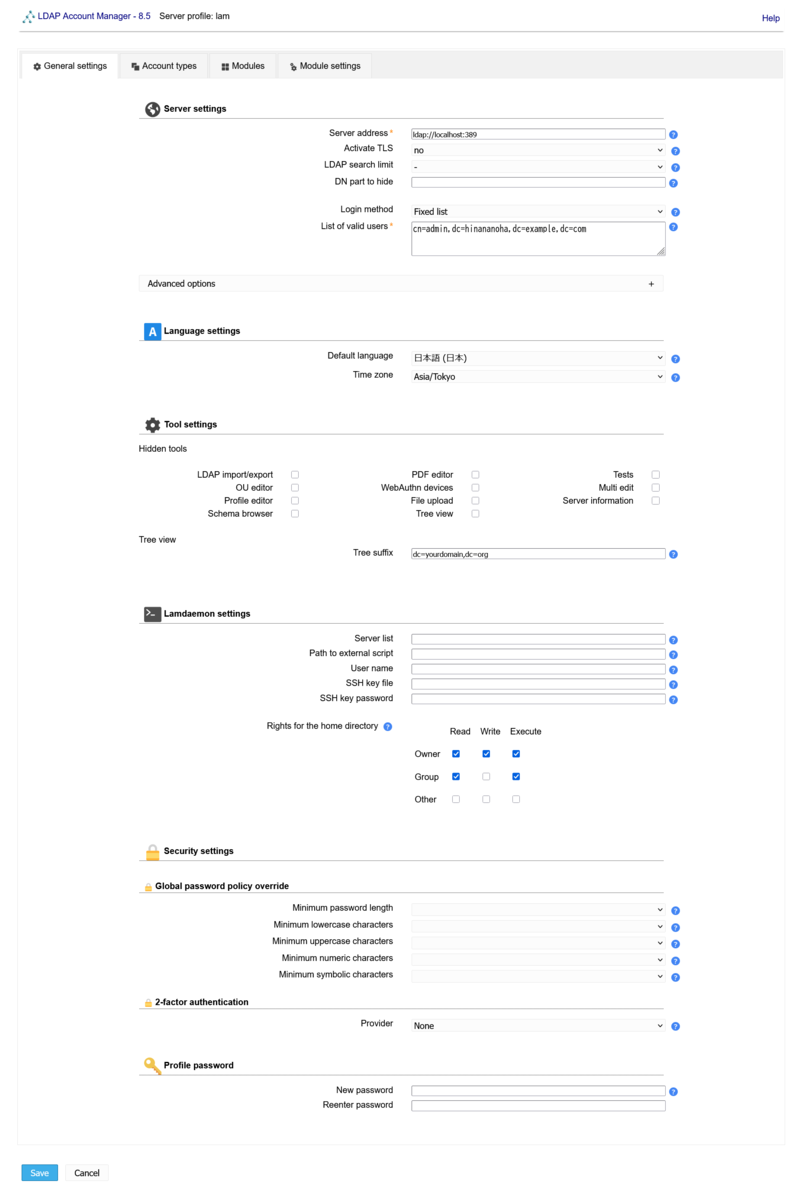
LDAP Account Managerで管理する項目の設定
続いて、「Account types」タブを選択して、LDAP Account Managerで管理する項目を設定する。
まず、「Available account types」の「Samba domains」の緑色の+ボタンをクリックし、Samba domainsをLDAP Account Managerで有効にする。
その上で、「Active account types」を以下の様に修正する
- Users
- LDAP suffix: ou=people,dc=hinananoha,dc=example,dc=com
- Groups
- LDAP suffix: ou=groups,dc=hinananoha,dc=example,dc=com
- Samba domains
- LDAP suffix: dc=hinananoha,dc=example,dc=com
- List attributes: #sambaDomainName;#sambaSID
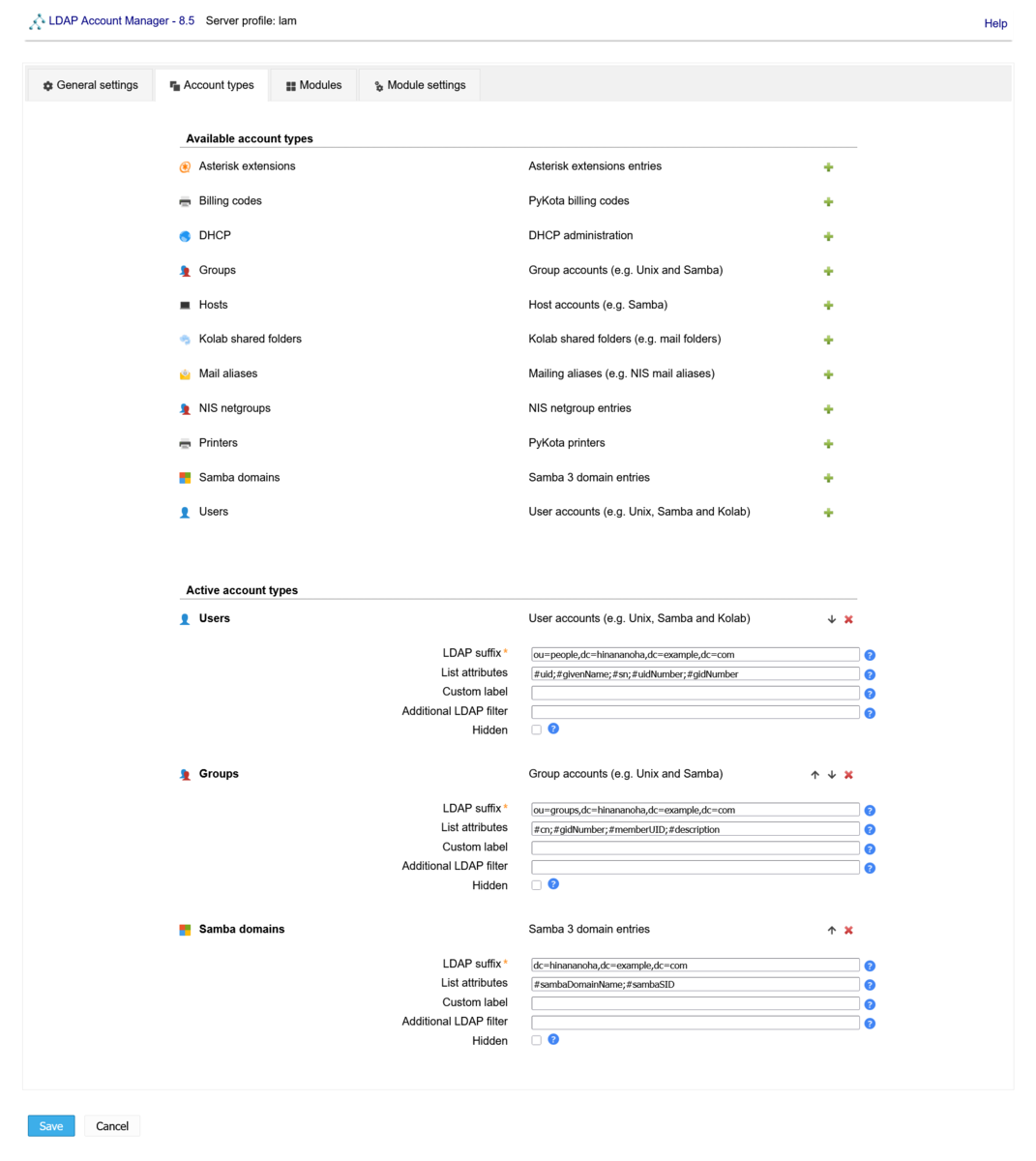
LDAP Accout Managerでsambaオブジェクトクラスを有効にする設定
続いて、「Modules」タブを選択して、sambaオブジェクトクラスを参照可能な状態にする。
下の画像で赤枠で囲われている、「Users」の「Samba 3 (sambaSamAccount) 」の緑色の + ボタンをクリックした後、同様に赤枠で囲われている「Samba domains」の2つの項目の緑色の+ボタンをクリックする。
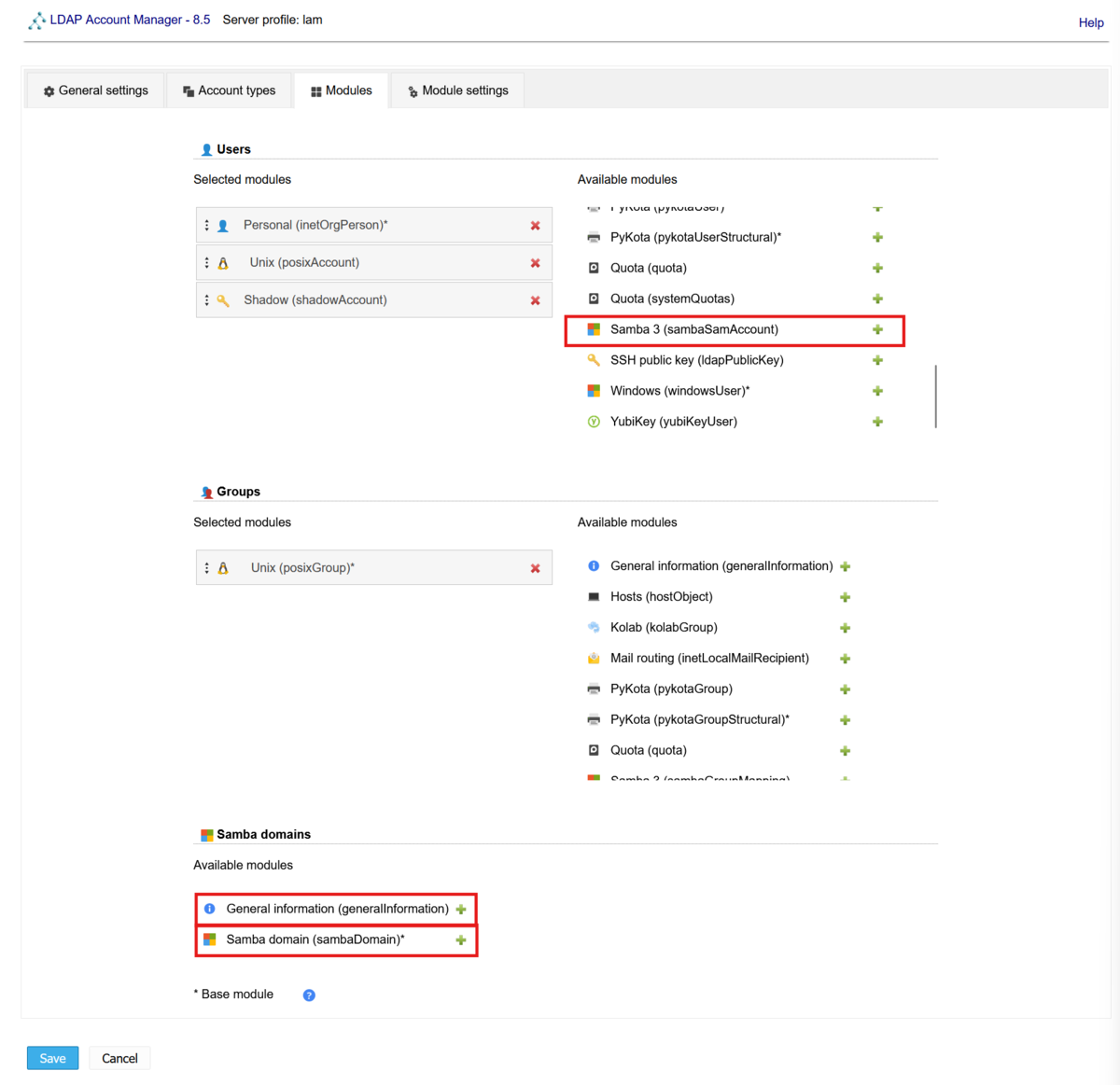
ここまで設定したら、左下の「Save」ボタンをクリックし、設定を完了する。
動作確認
ドメイン情報の表示確認
LDAP Account Managerのログイン画面に戻ってくるので、ログインを実施する。パスワードはLDAPの管理パスワード(先程のプロファイル管理パスワードではないので注意)。
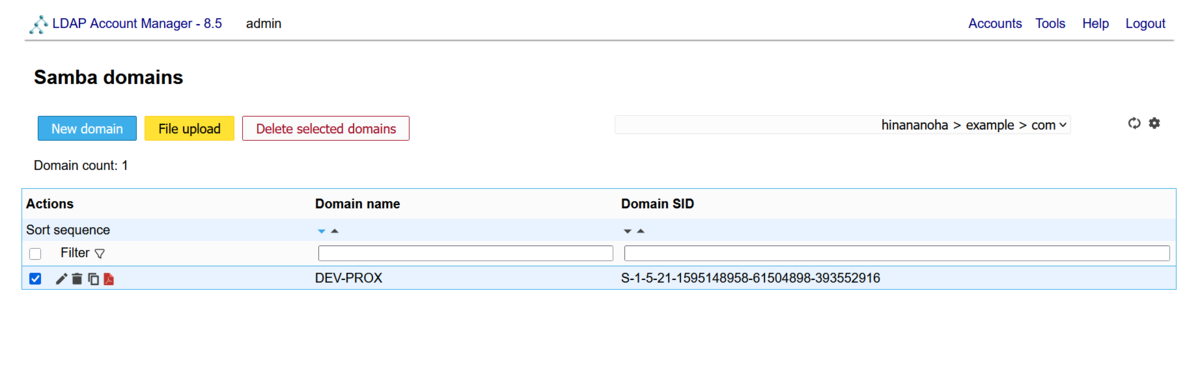
ログイン後、右上の「Accounts」にマウスオーバーして「Samba domains」をクリックした時にドメイン情報が表示されていればOK。
user識別情報の変更
標準ではユーザアカウントをuid= ではなく cn= で作ろうとするので修正する。
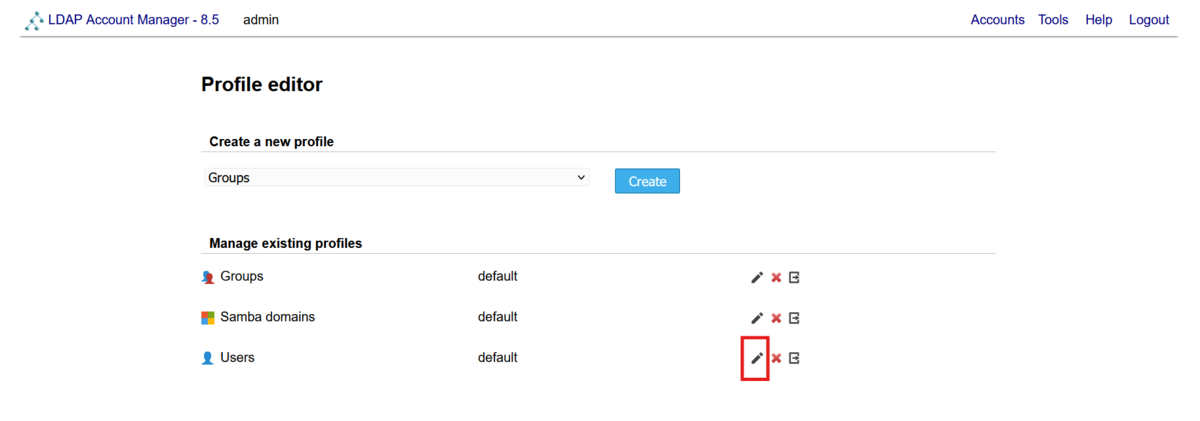
右上の「Tools」にマウスオーバーして「Profile editor」をクリックする。
その後、「Manage existing profiles」から「Users」の横の編集ボタン(画像赤枠)をクリックする。
General settingsの「RDN identifier」を「cn」から「uid」に変更する。
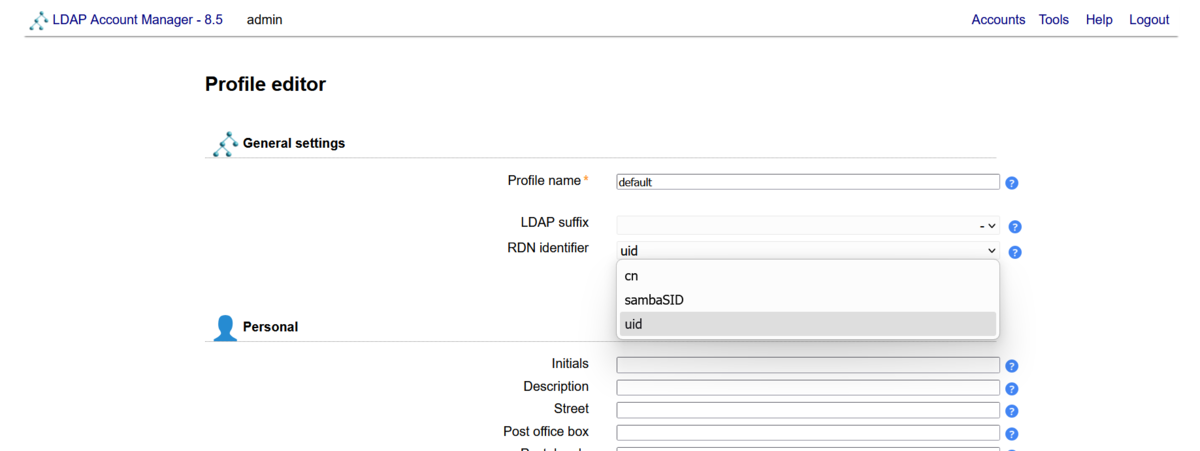
変更したら下までスクロールして「Save」をクリックして保存する。
ユーザアカウントの作成
無線LAN認証で用いるアカウントを作成する。
アカウントの作成方法はいくつかあるが、ここではLinuxのログインにも利用可能な形で作成する。
まず、右上の「Accounts」にマウスオーバーして「Groups」をクリックする。
グループの表示画面になるので、「New group」をクリックする。
グループは以下の情報で作成する
- Group name: username(uid)に付ける予定のものと同じものを入力
- GID number: 任意の数字を設定。よく使われるのは 10000 以降。今後作成する場合はこのIDをインクリメントする。

入力が終わったら「Save」をクリックしてグループの作成を終了する。
右上の「Accounts」にマウスオーバーして「Users」をクリックする。
ユーザの表示画面になるので、「New user」をクリックする。
右上の「RDN identifier」が「uid」になっていることを必ず確認する。
ユーザは以下の情報で作成する。
- Personal
- First name/Last name: 適当な値を入力(Last nameの方が必須)
- 他の項目:好きなように入力
- Unix
- username: 先程「Group name」に入力したものと同じ物を入力。なお、標準で「First nameの頭文字+Last name」が入力されている。
- UID number: 先程「GID number」で入力したものと同じものを入力
- Primary group: 先程作成したグループを選択(1つ目のアカウントの場合は1つしかグループが無いため既に選ばれているはず)
- Samba 3
- 「Add Samba 3 extension」というボタンが表示されている(下図)ので、ボタンをクリックする。
- 表示された項目は特に変更する必要はない
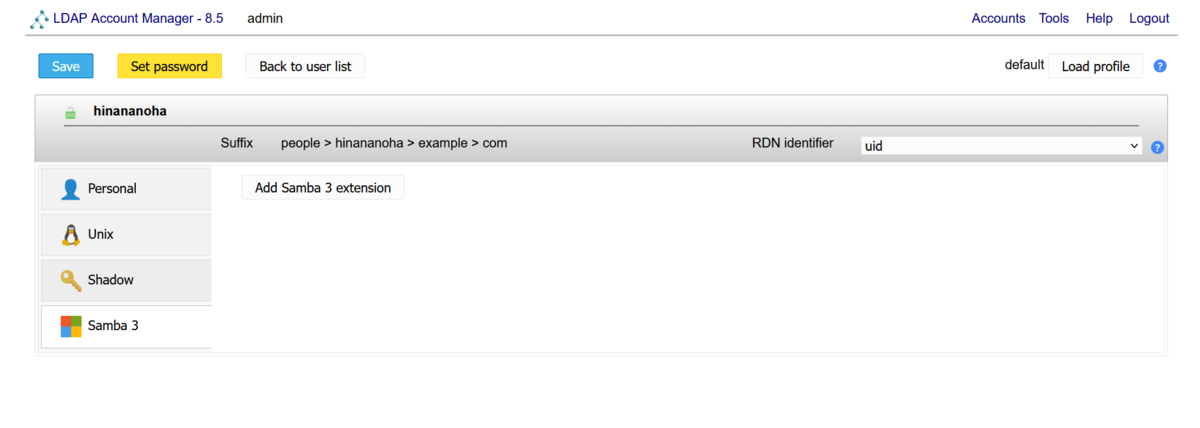
ここまでを実施した後(特に「Samba 3」の項目は忘れずに実施する)「Set password」ボタンをクリックする。
下に「Unix」と「Samba 3」にチェックが付いていることを確認して、パスワードを設定する。
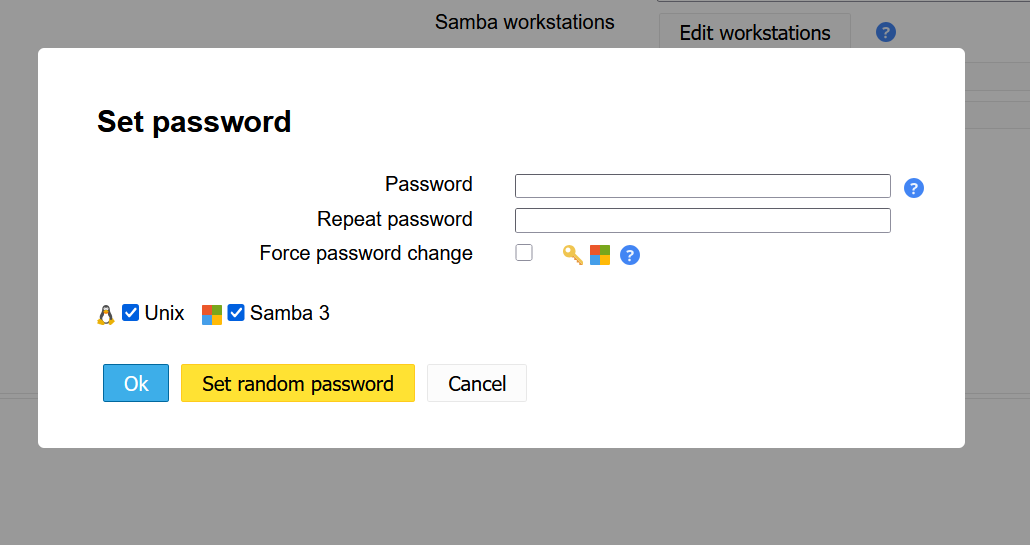
パスワードの設定まで完了したら、左上の「Save」ボタンをクリックしてユーザの作成を終了する。
LDAPユーザアカウントの確認
ここまで完了したところで、slapcatコマンドを実行して LDAP の登録情報を確認し、自分のユーザのところに「sambaNTPassword」が記載されていれば動作確認完了。
dn: uid=hinananoha,ou=people,dc=hinananoha,dc=example,dc=com
objectClass: sambaSamAccount
objectClass: posixAccount
objectClass: inetOrgPerson
objectClass: organizationalPerson
objectClass: person
sambaDomainName: DEV-PROX
displayName: hinananoha
sambaAcctFlags: [XU         ]
sambaHomeDrive: U:
sambaKickoffTime: 1893466373
sambaPrimaryGroupSID: S-1-5-21-1595148958-61504898-393552916-513
sambaNTPassword: XXXXXXXXXXX[MASKED]XXXXXXXXXXXX
sambaPwdLastSet: 1766458826
sambaSID: S-1-5-21-1595148958-61504898-393552916-21000
loginShell: /bin/bash
homeDirectory: /home/hinananoha
gecos: $firstname hinananoha
uid: hinananoha
cn: hinananoha
uidNumber: 10000
gidNumber: 10000
userPassword:: XXXXXXXXXXX[MASKED]XXXXXXXXXXXX
sn: hinananoha
structuralObjectClass: inetOrgPerson
entryUUID: 58226f7e-73f7-1040-9164-8b1d10ac8f32
creatorsName: cn=admin,dc=hinananoha,dc=example,dc=com
createTimestamp: 20251223030055Z
entryCSN: 20251223030055.725008Z#000000#000#000000
modifiersName: cn=admin,dc=hinananoha,dc=example,dc=com
modifyTimestamp: 20251223030055Z
あとは、Wi-Fi APでRADIUSの設定を実施すれば、Windowsからは特に何も気にすることなくWPA2/WPA3-EAPが利用可能になります。
解説
ここからは、なぜこれらの手順が必要で、その上で何故この設定で実現可能なのかを簡単に解説します。
WindowsでのWPA2/WPA3-EAPの(非明示な)仕様
Windows/Android/Linux/iOSに関係無く、現代のクライアント端末では通常、WPA2/WPA3-EAP認証は利用可能となっています。
EAP認証には様々な種類があり、証明書認証/コンピュータ認証/ユーザ・パスワード認証などがありますが、ここではユーザ・パスワード認証(接続時にユーザ名とパスワードを聞かれるもの)について説明します。
ユーザ・パスワード認証タイプのEAP方式には主にPEAPとEAP-TTLSがあります。
PEAPもEAP-TTLSもどちらも「認証をするときの暗号化トンネリング方式」を指しており、実際にはその中で更に認証方式(EAP Method)があります。
PEAPの場合はユーザ・パスワード認証が使えるのはMS-CHAPv2、EAP-TTLSの場合はPAP, CHAP, MS-CHAP(非推奨), MS-CHAPv2などがあります。
問題はこの認証方式で、Windowsは「仕様上は」何れの認証方法も*3使うことが出来ます。しかし、非明示な仕様として、(少なくともOpenLDAP+freeRADIUSで構築されたRADIUSサーバに対しては)WindowsはEAP認証を行う場合、普通にUI上からWi-Fi接続を選択して接続した場合、PEAP/EAP-TTLSの何れの場合も、MS-CHAPv2での認証に失敗した場合「認証に失敗した」として、それ以外の認証方法(PAP/CHAP)を試行することなく接続を終了します。また、なぜか設定から認証方式をPAP/CHAPなどを選択しても「まず」MS-CHAPv2を試行し、認証に失敗した場合PAP/CHAPを実施することなく接続を終了します(意☆味☆不☆明)*4。
もしかしたらこれを解決する設定方法があるのかもしれませんが、少なくとも一般のユーザがストレスなく接続する方法はなさそうです。何らかの理由で謎の意味不明な仕様がなくなったとしても、割と面倒な設定を経ないと使えないためです。
というわけで、WindowsからWPA2/WPA3-EAPを使う場合は、事実上認証方式はPEAP(MS-CHAPv2)か、EAP-TTLS(MS-CHAPv2)に限られる訳です。
MS-CHAPv2認証に必要なもの
ここで、OpenLDAP+freeRADIUSの構成の話に戻ります。
何れのEAP方式においても、MS-CHAPv2で認証を行う場合に必要なものがあります。それがNTPasswordです。これは、OpenLDAPのユーザアカウントが通常有しているハッシュ化されたuserPasswordからは生成できません*5。そのため、freeRADIUSは「平文のパスワードから」NTPasswordを生成するのですが、現在、普通にOpenLDAPを設定すると、平文のパスワードはOpenLDAPに保存されませんし、当然LDAPは平文のPasswordは持つべきではありません*6。
ちなみに、OpenLDAPと連携せず、freeRADIUS単体でPEAP(MS-CHAPv2) などを実現するのは簡単です。freeRADIUSで読み取れるアカウント情報を記載したファイルからNTPasswordを生成出来るためです。
商業サービスはどうやって実現しているの?
さて、商業サービスはどうやって実現しているか。答えは当然、Active Directoryです。当然、MS製品の認証をするわけなので、MS製品のIdPを使うのが自然ですね。
ところが、ADの構築は(したことがある方はご存じの通り)かな~り面倒臭いです。少なくともたかがWi-Fiの認証のためにやるのは無駄骨もいいところです。
Windows Serverで実現する方法は勿論、LinuxでもSambaのSamba AD/DCを使えばADは動くのですが、これをフルで構築するのはかなり面倒です。
さて、本当にWi-Fiの認証のために、フルスペックのAD/DCは必要なんでしょうか。
OpenLDAPに「最低限」必要な項目
さて、OpenLDAP+freeRADIUS連携でMS-CHAPv2認証を通すのに最低限必要な項目は何か。
それは、sambaSamAccoutオブジェクトクラスのsambaNTPasswordのみです。
さて、OpenLDAPにおいてそのsambaSamAccountオブジェクトクラスで必須とされているディレクティブは何か。それは、この記事の導入方法で出てきたここに答えが書いてあります。
~$ cd /usr/share/doc/samba/examples/LDAP/
/usr/share/doc/samba/examples/LDAP$ sudo ldapadd -Y EXTERNAL -H ldapi:/// -f samba.ldif
SASL/EXTERNAL authentication started
SASL username: gidNumber=0+uidNumber=0,cn=peercred,cn=external,cn=auth
SASL SSF: 0
adding new entry "cn=samba,cn=schema,cn=config"
ここで登場したsamba.ldifを開いて見ると、こんなことが書かれています。
olcObjectClasses: {0}( 1.3.6.1.4.1.7165.2.2.6 NAME 'sambaSamAccount' DESC 'Sam
 ba 3.0 Auxilary SAM Account' SUP top AUXILIARY MUST ( uid $ sambaSID ) MAY (
 cn $ sambaLMPassword $ sambaNTPassword $ sambaPwdLastSet $ sambaLogonTime $ s
 ambaLogoffTime $ sambaKickoffTime $ sambaPwdCanChange $ sambaPwdMustChange $
 sambaAcctFlags $ displayName $ sambaHomePath $ sambaHomeDrive $ sambaLogonScr
 ipt $ sambaProfilePath $ description $ sambaUserWorkstations $ sambaPrimaryGr
 oupSID $ sambaDomainName $ sambaMungedDial $ sambaBadPasswordCount $ sambaBad
 PasswordTime $ sambaPasswordHistory $ sambaLogonHours ) )
MUST ( uid $ sambaSID ) MAY (...と書いてあるので、オブジェクトクラスとしてはsambaSIDだけあればOKです。
ということは、この記事の内容を実現するのに最低限必要なのは、sambaSIDとsambaNTPasswordだけです。
そのため、ここまで丁寧に記事を読んだ諸兄の中で、アカウントを作る際に毎度毎度LDIFファイルを作る事が苦でない変態優秀な方や、LDIFファイルを自動で生成してアカウントを作るスクリプトを組むことに快感を覚える方などは、実は「sambaの設定(samba-ad-dc)」以降は、任意の手段でNTPasswordさえ生成できれば、もう少し楽(?)な方法で実現が可能です。
smbldap-tools の死
さらに優秀な諸兄や、長年ネットワークに触れている方には、「そういうのを良い感じにしてくれるsmbldap-toolsってのがあったでしょ」と言われることでしょう。はい、確かにあります。ただ……。
github.com
ご覧の通り、2020年を最後に更新が止まっており、今日のLinux環境では動作しません。
実は私は以前(2017年頃)同様の必要性に駆られた際に調査した時、ちょうどsmbldap-toolsが最新版に更新され、Got Kotonakiしたことがありました。それから8年。残念ながら更新は5年前にストップし、現在では動かない物となってしまいました……。
今回LAMを使った理由
前述の通り、NTPasswordを生成する方法さえあれば、その後のSamba AD/DCがいるように見せる必要はありませんでした。では、なぜそのような無駄なあがきをしたか。それは、「再現性がある形で簡単に」できるようにしたためです。
実は「OpenLDAPに「最低限」必要な項目」に書いた内容は、2017年の調査時に、smbldap-toolsの導入後に知りまして、最終的にはLDIFファイルを自動で生成して登録するシェルスクリプトを組みました。しかし、そのシェルスクリプトはいずこに……。
今回同じ事をやってもまた同様の事態になるだろう、ということで、「よくあるLDAP管理ツールで」「フルスペックADを組まずに」「MS-CHAPv2認証が通る構成を作る」という目的で、今回の記事を書きました。
もちろん、ここまで丁寧に呼んでくださった諸兄は、前記の仕様を用いて「発展的な手段」を用いるのも良いかと思います。是非、試してみてください。
さいごに - という名の記事を完走した感想
この記事は、whywaita Advent Calendar 10周年記念 Party のLTで話した内容を記事にしたものです。
――が、当初の予定を大幅に上回って内容がみっちみちみちになってしまい、大遅刻しました。whyくん、ほんとうに申し訳ない。
実はこの記事の内容に相当する内容は、前述の2017年頃に構築した際にブログに投稿していました。
しかし、そのブログは当時自宅鯖で運用していたWordPress上のもので、今はどこにも現存しません*7。
そして、改めて今年構築することになった時調べようとしても、情報が全く出てこない。これは、記事を書いて後生に残すべきだ、と思い、執筆するに至りました。このブログが消えないことを祈っています。
書くのは滅茶苦茶大変でした。久々にこの文量の技術ブログ記事を書きました。そして、何より、まだ現在、冬コミの原稿が仕上がっていないのが一番ピンチです。無事、私は冬コミの新刊が出来るのでしょうか。
その結果は、是非 2025年12月31日に、東京ビッグサイトで開催されるコミックマーケット107 2日目 2日目南h-18ab 「嬉野ネットワークサービス」にてご確認下さい(露骨な宣伝)
おまけ
ほぎゃ~~~~~~~~~!!!!!!!! pic.twitter.com/6DAcZ3yPSG
— ひなっち (@156million) 2025年12月22日

このクソ忙しいタイミングでサーバのうちの1台が、RAIDを構成するディスクの1台が死んだって言ってきました*8。
ディスク故障は、忙しい時にやってきます。RAID/バックアップ/冗長化は大事です、という話でオチを付けたいと思いマス。
*1:諸説あります
*2:年々雑になる導入
*3:MS-CHAPはもう使えなかったかもしれない
*4:本当に意味不明。昔試したときに本当に訳が分からなくてモニタをぶん殴った記憶がある
*5:言うまでも無く、ハッシュ化されたものから作ったハッシュで、元のパスワードに対して認証が通るのは訳がわからないから、当然です
*6:この記事を書くに当たって他の記事を調べると、平文のPasswordをLDAPに持たせるように指示しているものがあり、恐怖に震えました
*7:一応Web Archiveは残ってました。今回の構築の際にだいぶ参考になった。過去の私、ありがとう。https://web.archive.org/web/20160516110234/http://blog.estel-freesia.moe/2016/05/156/
*8:iLOを見たらPredictive failureなので「もうすぐ死ぬかも」なのでまだ比較的マシだけど、数日中には対応します
誤自宅で簡単にできる白菜漬け(whywaita Advent Calendar 2024)
お久しぶりです
こちらのブログで記事を書くのは久しぶりです。hinananohaです。
本記事は whywaita Advent Calendar 2024 - Adventar の20日目の記事です。
カレンダーに名前を入れるときにこんなことを書いたのですが

案の定、原稿(どころか、その前提のプログラミング)に追いかけられながらやっています。
昨日はKHe7さんの記事でした。
ファームウェアの不具合の問題が無事解決してよかったところですが、これ出会ったら私だいぶ慌てるだろうなぁ……。
今回何を書こうかな、と思って、3日目のmorimolymolyさんの企業内研究者としての生活を見て、私も同じく企業内セキュリティリサーチャーとして何か書こうかなと思ったのですが、こう、色々書ける話、書けない話を考えていたら手が止まったので、この話は気になる方はオフラインで聞きに来て下さい。
というわけで、コミケ新刊の修羅場に追われながら、白菜漬けの話をしたいと思います*1。
冬コミの新刊の話は、12/25以降にします!
白菜漬け(塩漬け)を作り始めたきっかけ
ここで言う「白菜漬け」は「塩を用いた白菜の漬け物」で、かつ「浅漬けではない」ものになります。
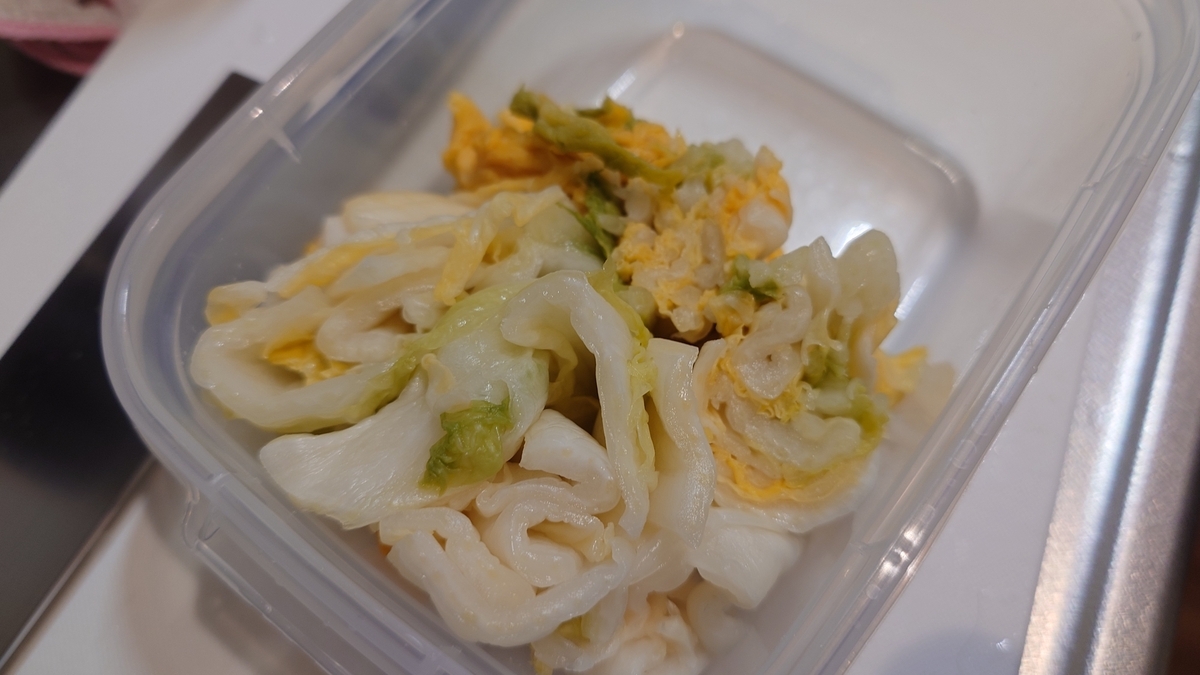
様々な漬物が割とスーパーやコンビニで買える今日ですが、実は白菜漬けって買えたり買えなかったりする上に、結構高いので、なかなか買う気にはなれないんですね。
また、これは後ほど述べるのですが、市販のものの味が、私が知っている味*2ではありませんでした。
それでも、大学生の頃は祖母が作っては送ってくれていたのですが、やはり歳で漬物が辛くなったことなどから作るのをやめてしまったので、ついに自分で作らざるを得なくなり、2018年頃から漬物を作っておりました。
白菜漬けの状況
白菜漬けをはじめてから早6年、だいぶ安定した味が出せるようになりました。
某所*3に事情があって持って行ったときは、大変お褒め頂いたと伺っており、だいぶ自信が付いてきました。
今年から二度漬けにも挑戦し始めています。
まだまだ闘いは続く――!
白菜漬けって大変じゃない?
案外簡単です。他の漬物(ぬか漬けとか)と比べて簡単かつすぐ(1週間以内)に食べられるので、ずぼら日々忙しい皆様でも簡単に作れます!
作り方
経緯とか話してもいいんですが、作り方が気になる人も多いと思うので*4、先に作り方の話をします。
必要なもの
一般のご自宅版
- 白菜
- 実が詰まっているものが望ましい。スーパーで買えるものでOK。最初は1/4株からやるといい。
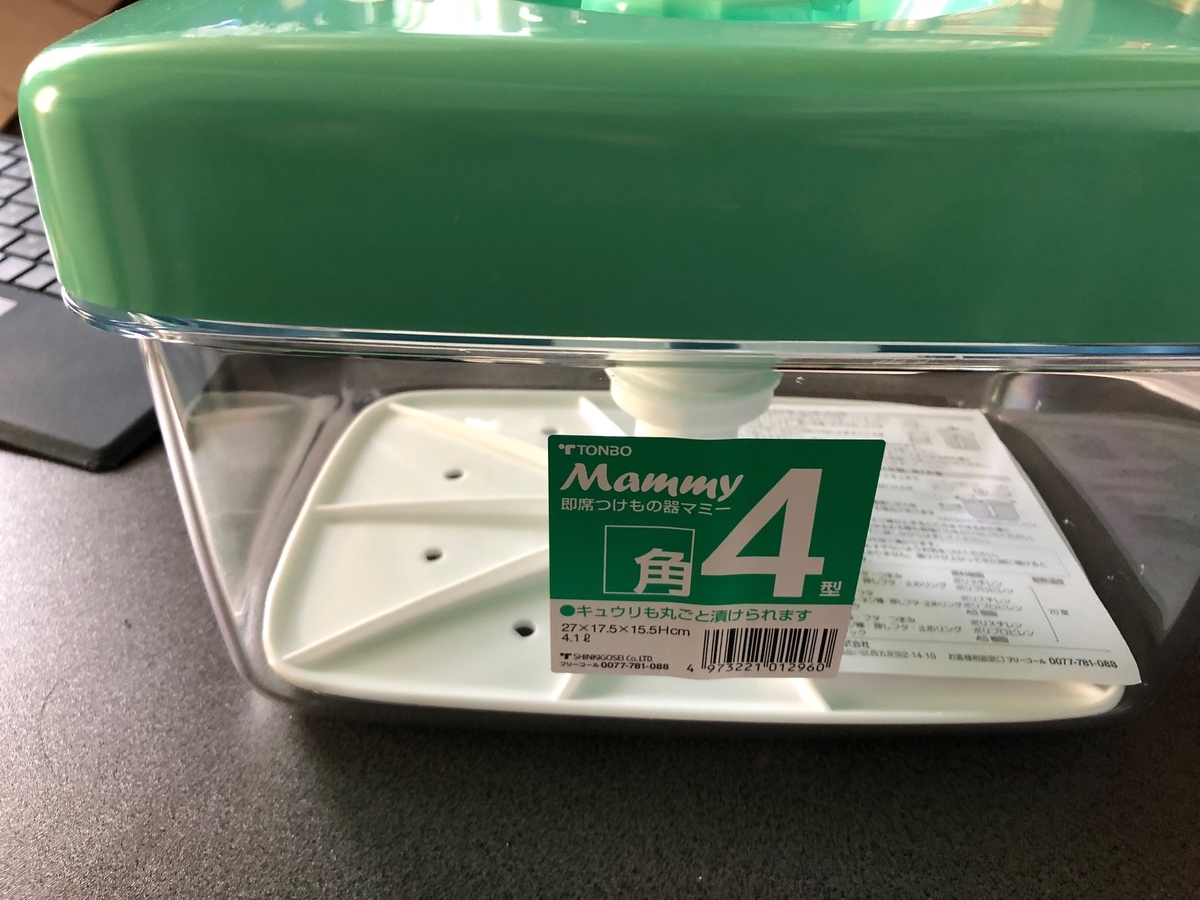
- 漬物容器
- こういった簡易漬物容器があるので、これを使うと楽で良い。だいたいこのサイズで1/4株が入るくらい。
- 塩など
- ぶっちゃけ塩だけで十分。塩だけで漬ける場合は漬ける白菜の重量の3~4%程度の重量の塩。あらじおが良いとか色々あるが、好みの問題なので普通の塩でも可。
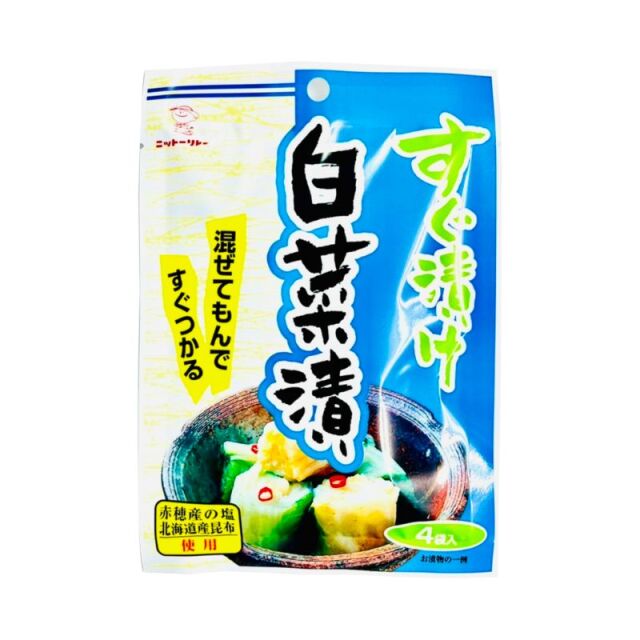
- もしうまみが欲しければ、「白菜漬けの素」的な商品があるので、それを使うと良い。重量は各製品に記載の量を使う。
- 漬物容器が入る冷蔵庫のスペース
逸般の誤自宅版
- 白菜
- 1株推奨。2kgを越えていて、比較的大ぶりで、密度が高そうなもの。2kg以下のものや、小さいもの、実が詰まって無さそうなものは、塩加減や漬け時間、含有水分量などの関係で難易度が上がる(失敗率が高い)ので避けるべき。
- 1株が怖い場合は半株でも可。半株の場合はスーパーで実が詰まってるものを買うと良い。
- 漬物樽
- いわゆるこういう黄色い樽。1株漬ける場合は15Lのものがあると良い。半株なら8Lでも可。
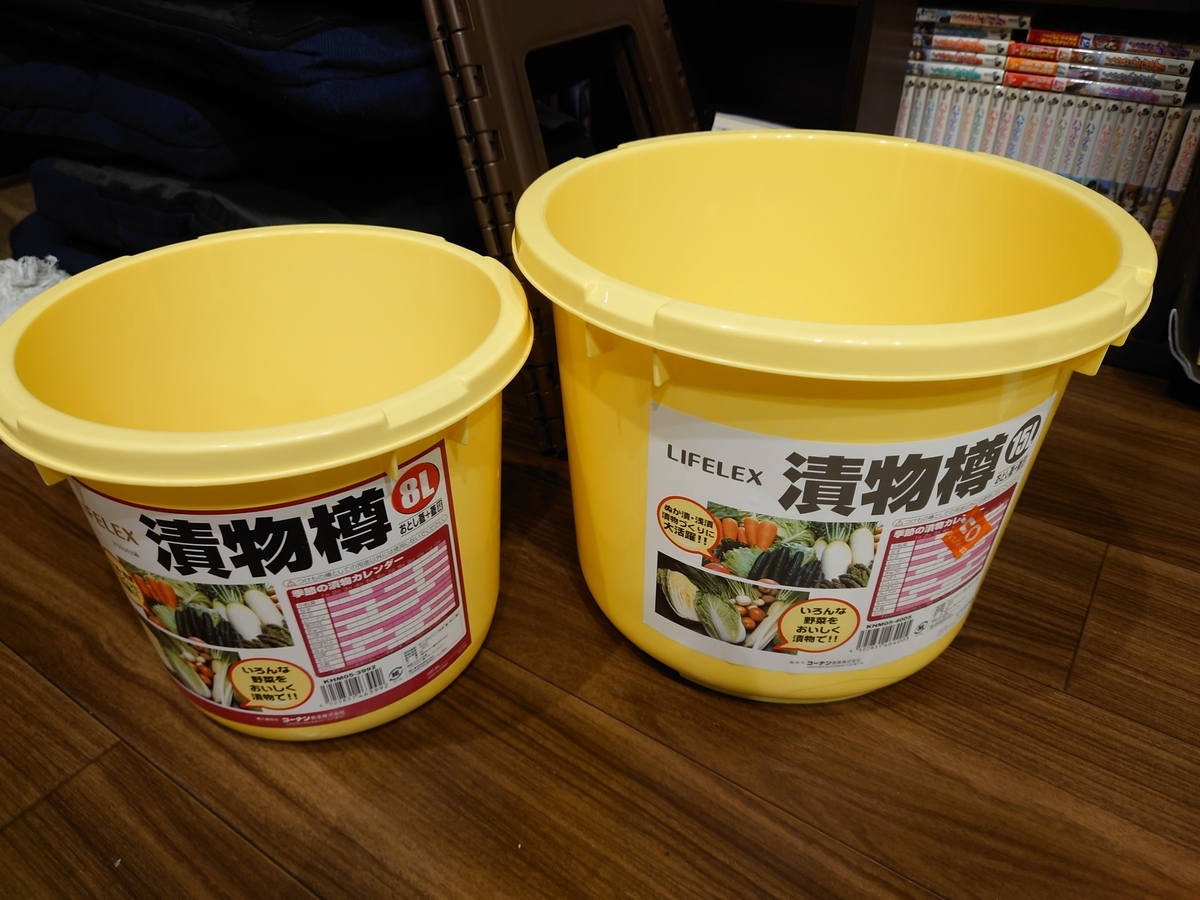
- 漬物石
- 白菜の重量の2~3倍のものを買う。我が家は5.5kgのものと2.5kgのものがそれぞれ1つずつある。
- 塩
- 塩だけで十分。塩で漬ける場合は白菜の重量の3~4%程度の重量の塩。なお、漬け作業中に結構こぼれるので、実際にはもう少し多くて良い。5%を越えると流石にしょっぱいので気をつける。
- 漬物樽を置いておける、風通しがよくかつ涼しい(というか寒い)場所
- 我が家は、玄関即階段なテラスハウス型の住宅で、靴箱の一部を占有して作っています。Switchbot曰く、この一ヶ月の玄関の温度は平均13℃、最大で16℃でした。
- 多分逸般ポイントがここ。今日の住宅事情で漬物樽を置いておいても問題ない、冬場に一日を通して寒い場所を用意するのが難しい気がする。蔵とか倉庫とかお持ちの方は最高ですね。
手順
1. 白菜を干します
- 白菜を1/4株ずつに切り分けて、天日干しします。天日干しは1昼日(朝9~10時くらいに干して、夕方5時くらいには取り込む)くらいで可。晴れている日推奨、曇りの日の場合は少し干し時間を延ばして。雨の日はNG。
- 取り込み時に、白菜の中心側の小さい葉が乾燥してクルッとなっていれば十分。カラッカラにする必要は無い。
- 白菜を天日干しするのは水分を適度に抜いた上で、旨みを凝縮するため……とされているが、理由は不明。経験則によって干すと良いとされている。
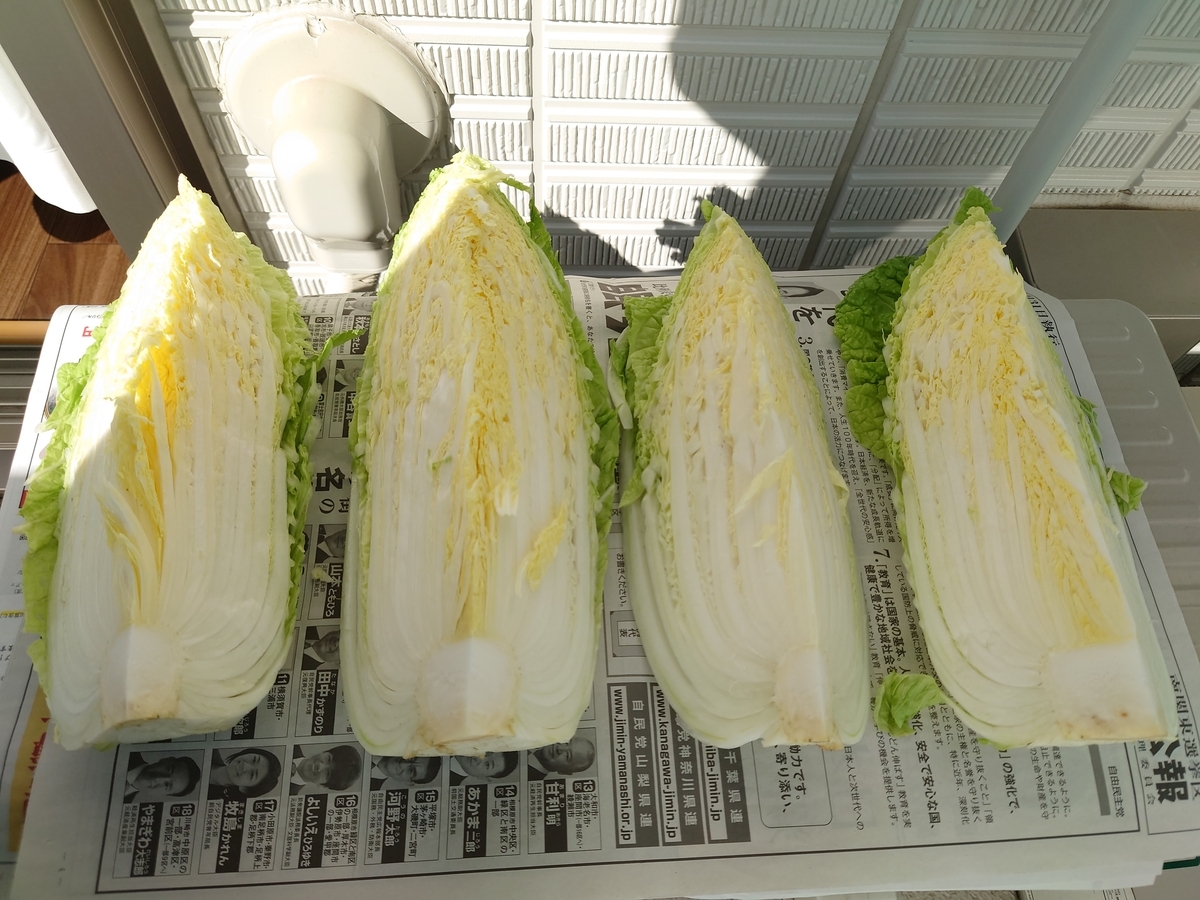
2. 白菜に塩を塗り込みます。
- 白菜の切り口、葉っぱの間の、特に白い所、白菜の一番外側に塩を付けます。切り口と外側には塩を軽くなすりつけ、白菜の葉の間は軽く撫でる程度でOK。塩の量に気をつけて(株によって偏りがないように)。
- 案外適当で良い。全ての葉っぱの間に入れる必要はなく、1つの株に対して、適当に4~5箇所に埋め込む程度でOK。
3. 白菜を樽に入れます。
- 一般のご自宅版の場合
- 漬物容器に入れた上で、重しの代わりの圧力板をねじ込んで圧をかけます。
- ネジが壊れない程度に圧をかけて良い。
- 逸般の誤自宅の場合
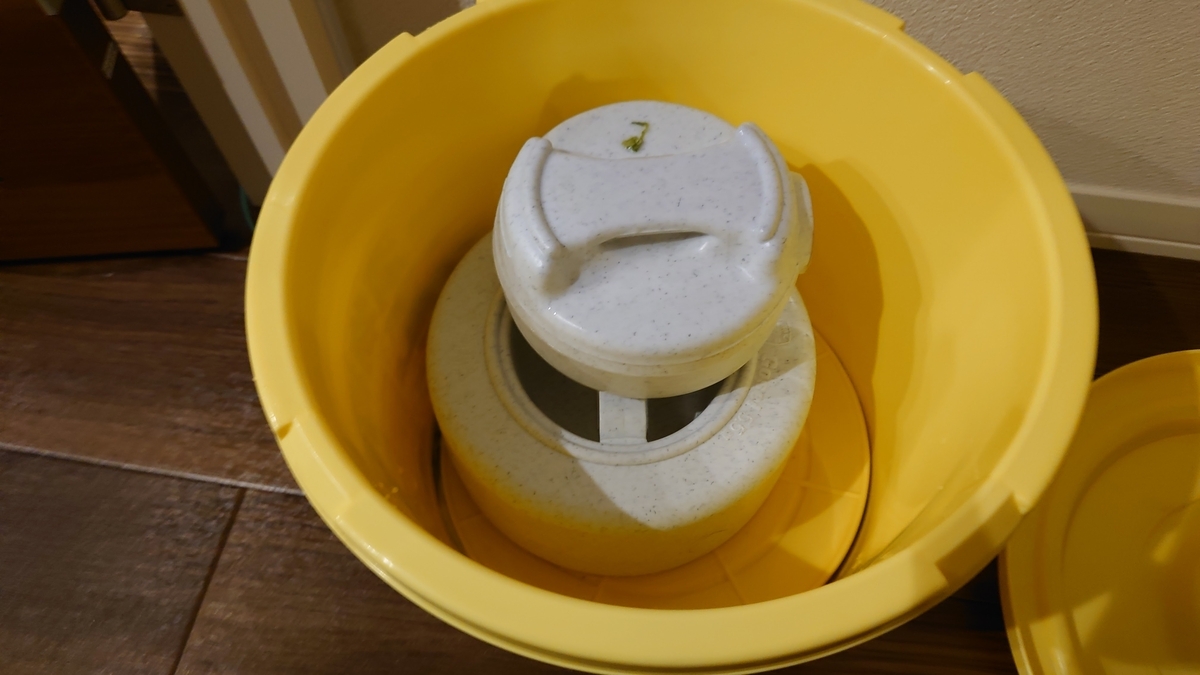
- 樽にバランス良く詰める。1層目に1/4株を互い違いに2つ、その上に向きを90°変えて同じように1/4株を互い違いに2つ置く。この辺りは各株のサイズなどによって上手く調整すると良い。
- その上に内蓋を置き、その上に漬物石を置く。漬物石は白菜の重量の2~3倍が良いとされている。
4. 漬け込みます。
- 一般のご自宅の場合
- 漬物容器を冷蔵庫に入れます。もし、普通の食料と別の冷蔵庫を用意出来る場合は、少し温度高め(3~5℃)くらいに設定した所に置くと良いです。
- 逸般の誤家庭の場合
- 風通しがよく、涼しい場所に置きます。
- 割と漬物独特の匂いが出ます。不快な人は不快なので、必ず家族が居る方は事前に言いましょう。また、近くに匂い移りが強いものは置かないようにしましょう。
- 樽の中にゴミが入らないように注意。
- 虫(特にゴキブリ・ハエなど)が出る可能性のあるご自宅は、必ず外蓋の上にも重しを載せ、中に侵入しないようにすること。
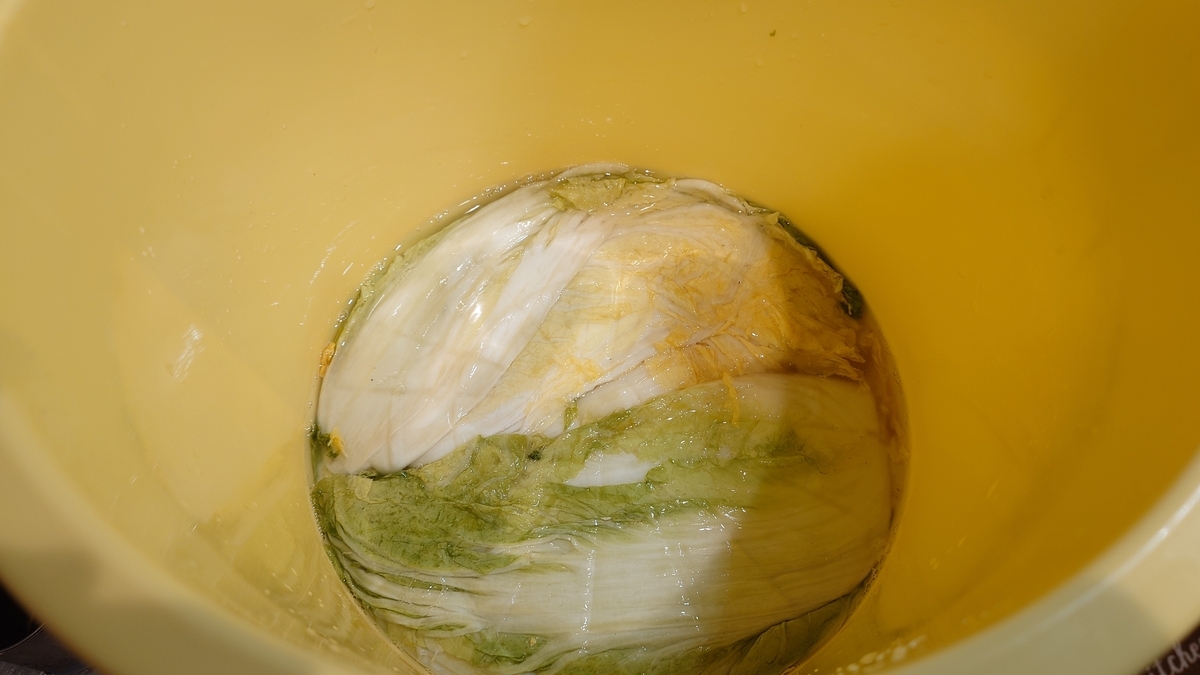
- 上手くいくと、白菜から水が出てきます。水が出て白菜がその水に浸かる状態を「水が上がる」と言います。
- 【重要】2晩(白菜を樽に入れた翌々日の朝)経っても水が上がる気配がない(漬け樽の外蓋を開けて中を見たときに水がある様子が分からない時。漬物容器などの場合は、白菜の大半が水に浸かってない状態)場合は、「呼び水」を入れる必要がある。呼び水は3%食塩水で、白菜が程々に漬かる程度に。但し割とこの時点で半分失敗。
- 水が上がらない原因
- 白菜の重量が軽すぎた(実が詰まってなかった、そもそも小さかった)
- 白菜から水分が抜けすぎた(干しすぎた、買ってからしばらく室内で放置して事実上干した状態になっていた、など)
- 漬けている環境の温度が高すぎた(※逸般の誤家庭のみ。だいたい漬けている所の室温が20℃超え始めるとこの現象が出る)
- 水が上がらない原因
- (一般のご自宅版) 徐々に体積が減っていくので、1日に1回見て、板を締め込んでください。水がちゃんと上がってからはギッチギチにしなくて、軽く押されてればOKです。

5. 程よくなるまで漬けます
- この辺は好みによる。漬けてから3日経ったあたりから、葉っぱの端っこを小さく千切って絞った上で食べて見ると良い。何回も漬けていると何となく良い日付が見えて来る。
- 私の好みは(逸般の誤家庭モードで)だいたい4~6日くらい。但し、漬け期間に温度が高い日があったら早めに上げる。
6. 取り出します。
- 一般のご自宅版(1/4) の場合は、取り出したら水道水で軽く洗った後、水気を絞って切り分けた上でタッパーに入れます。
- 逸般の誤家庭版の場合は、そのまま大きめのタッパーにうつした後、漬け汁を細かめのザルや濾し器などで漉した上で*5そのタッパーに入れ、必要に応じて取り出して、上記の様に切り分けます。
7. 食べます
- おいしいです。
- 塩だけで漬けた場合、鰹節をかけて、醤油を軽く垂らして食べるとおいしいです。もちろん、そのまま米の上にのっけて食べても美味しいです。
- だいたいこのくらい保ちます
- 漬け汁からあげて切った後
- 塩のみ:2週間~1ヵ月(但し徐々に乳酸発酵(※キムチで起きている現象)が進むため酸っぱくなっていきます)
- 色々入れた場合:1週間(越えるとカビが生えることあり)
- 漬け汁に入っている場合
- 塩のみ:2ヵ月くらい?(推奨は1ヵ月)
- 色々入れた場合:不明(試した事なし)
- 漬け汁からあげて切った後
8. 次のを仕込みます。
- 干してから食べれるようになるまでおよそ5日~1週間かかるので、漬物がなくなるタイミングを計算して漬け込みましょう
長いので一旦ここで記事をしめる
というわけで、皆も白菜漬け、やろう!
明日はhydrogenさんです。哲学らしいです。whywaita哲学(?)、楽しみにしています。
これまでの経緯
これまでの経緯です。長いのでここから先は見たい人だけでOK。
2018年:白菜漬け開始
あ、そうじゃん。漬物作りたいって言ってたのにやってない
— ひなっち (@156million) 2018年10月29日
(※漬物容器の画像ツイートはセンシティブらしく埋め込みできなかった)
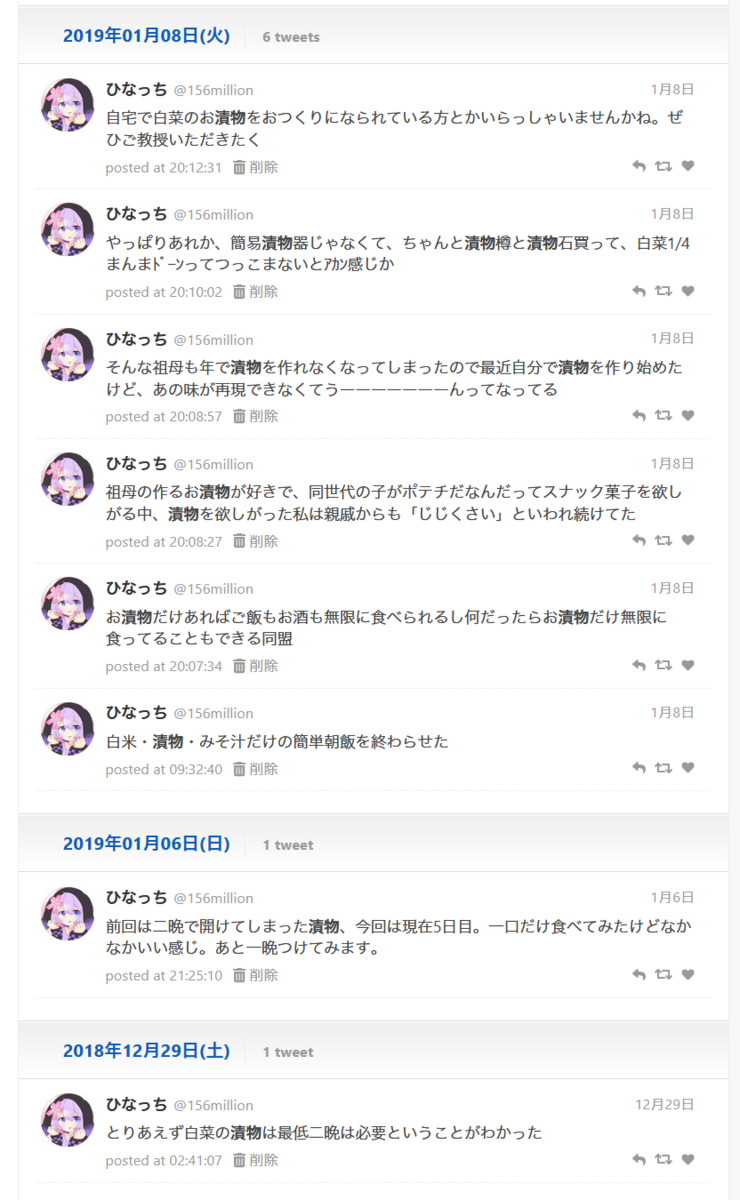
この頃はまだ白菜漬けの素を浸かっていた。
2019年:白菜漬け2年目
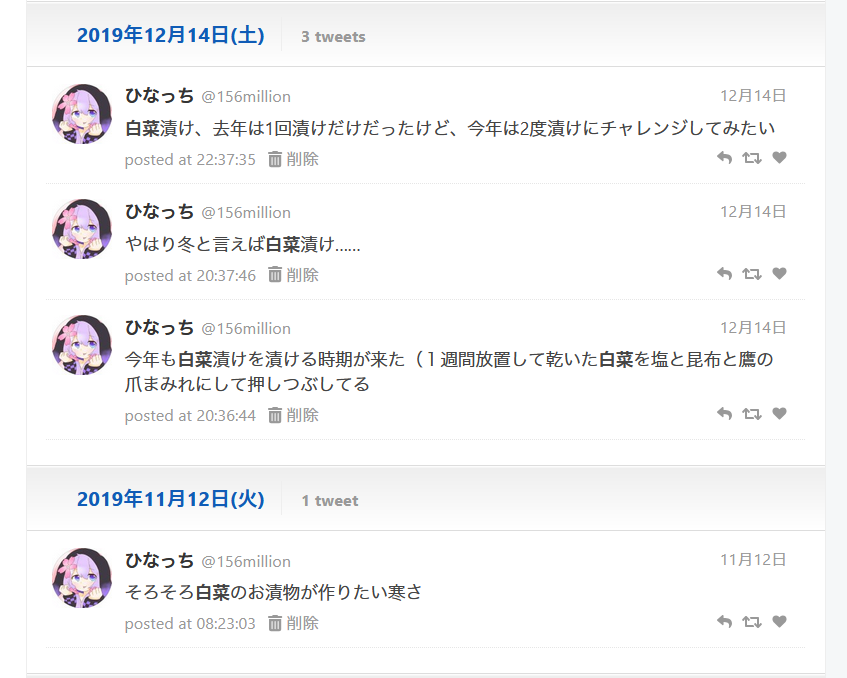
一週間放置した白菜を使っていたりと、この頃はまだ最適化出来ていなくて、よく失敗していた。
2020年:白菜漬け3年目
この年の6月に今の家に引越をして、漬け樽を使った白菜漬けができるようになった。
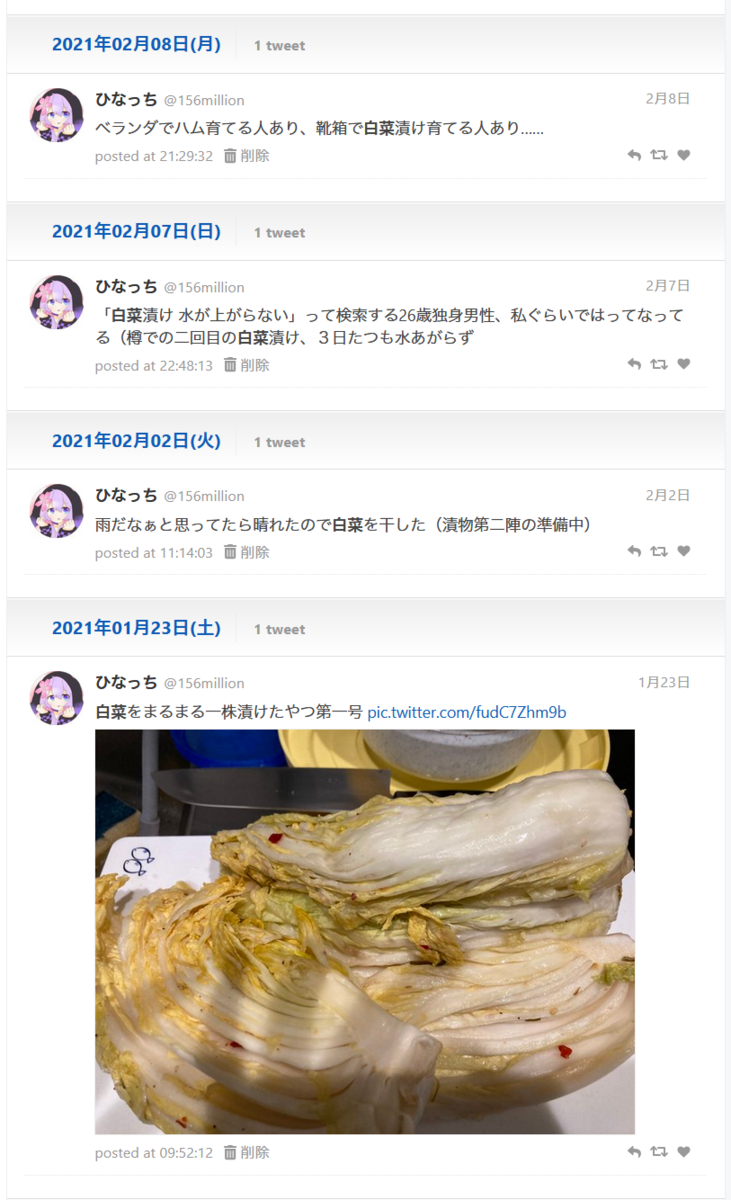
水が上がらなくて苦労するなどをした年。
でもねぇ~~~~~、自分で作った白菜漬け、まだ100点ではないけど、最近やっと70~80点くらいにはなってきていて、自分の食いたい物が安価に手に入る喜びを感じているよね
— ひなっち (@156million) 2021年2月9日
だいぶまだ不満な様子
2021年:白菜漬け4年目
この年から「塩のみ」で白菜漬けを開始。
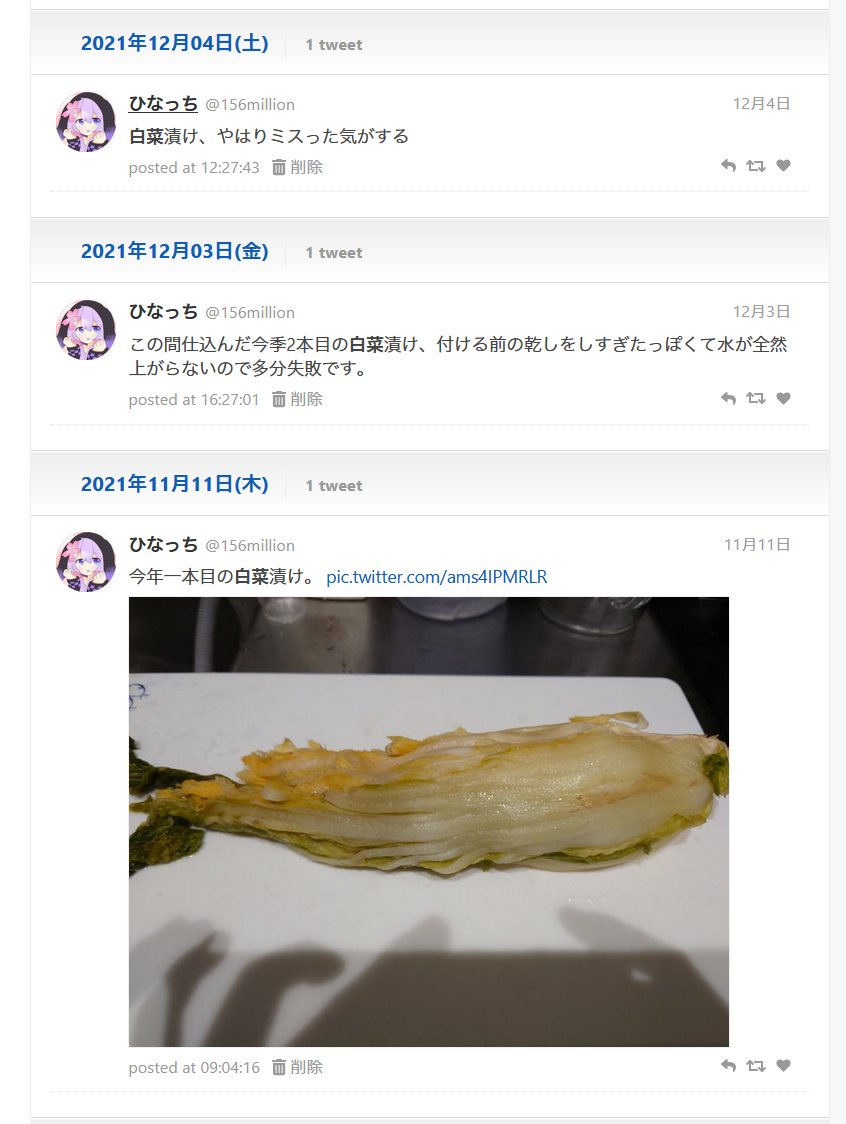
白菜第二弾は天日干ししすぎたせいで水が上がらず腐ってしまったので第三弾をやってるけど今回はそもそも白菜がでかすぎて、漬物樽から溢れそう(
— ひなっち (@156million) 2021年12月10日
これが理由で、樽を8L→15Lに変えた。
塩だけで作る白菜漬け、大分味が祖母の作っていたそれに近づいて来たので、多分理想型ですね
— ひなっち (@156million) 2022年2月19日
後に母から「祖母は塩だけで漬けてたよ」と教えてもらい、正解を確信する。
塩だけで作る白菜漬け、超素朴だし、混ざり物が少ないので温度管理さえミスらなければ割と漬け上がってからも(漬け汁につけておけば)味が大きく変ることなく長く持つんだけど、逆に唐辛子とかそういうのが入ってないから温度管理ミスると一発で腐るし黴びる
— ひなっち (@156million) 2022年2月19日
ちなみに、昆布や唐辛子、ゴマ、ゆずとかが入っている(市販の)白菜漬けは足がめちゃくちゃ速い気がする。冷蔵庫に入れてても黴びるし腐るし、放置してても発酵が進むのか、駄目になりやすい印象がある
— ひなっち (@156million) 2022年2月19日
ちなみに白菜漬け、漬ける前に天日干しは必要ですが、逆に欲しすぎると全然水が上がらなくて漬けてる最中に腐ってまじでどうしようもなくなります(一敗)
— ひなっち (@156million) 2022年2月19日
試行錯誤の結果得た答え。この答えは未だに変わってない。
2022年~
ここからはもう安定しているのでTwitterでつぶやいている内容が少ない。
白菜漬け、最初の数日でちゃんと水が上がるかで勝負の8割が決まる。そしてそれは白菜選びと干しの加減に影響されるので、勝負は始まる前に終わってる感じがある
— ひなっち (@156million) 2024年11月26日
真理かもしれない。
C102、お疲れ様でした!
TL;DR
新刊の通販、開始しています。
https://www.melonbooks.co.jp/detail/detail.php?product_id=2052081
既刊各種も通販開始してます。
- 会報URESHINO Vol.3 (Funnel Advisor本)
https://www.melonbooks.co.jp/detail/detail.php?product_id=1799166
- 会報URESHINO 2021冬特別号「同人誌即売会とキャッシュレス」
https://www.melonbooks.co.jp/detail/detail.php?product_id=1799165
委託の既刊も通販受け付けています。また、こちらの本は9/30(土)に東京都・大田区産業プラザPiOで開催される「ボイスコネクト3」でも頒布します。
- 自律人型アンドロイドのセキュリティ入門
C102、お疲れ様でした!
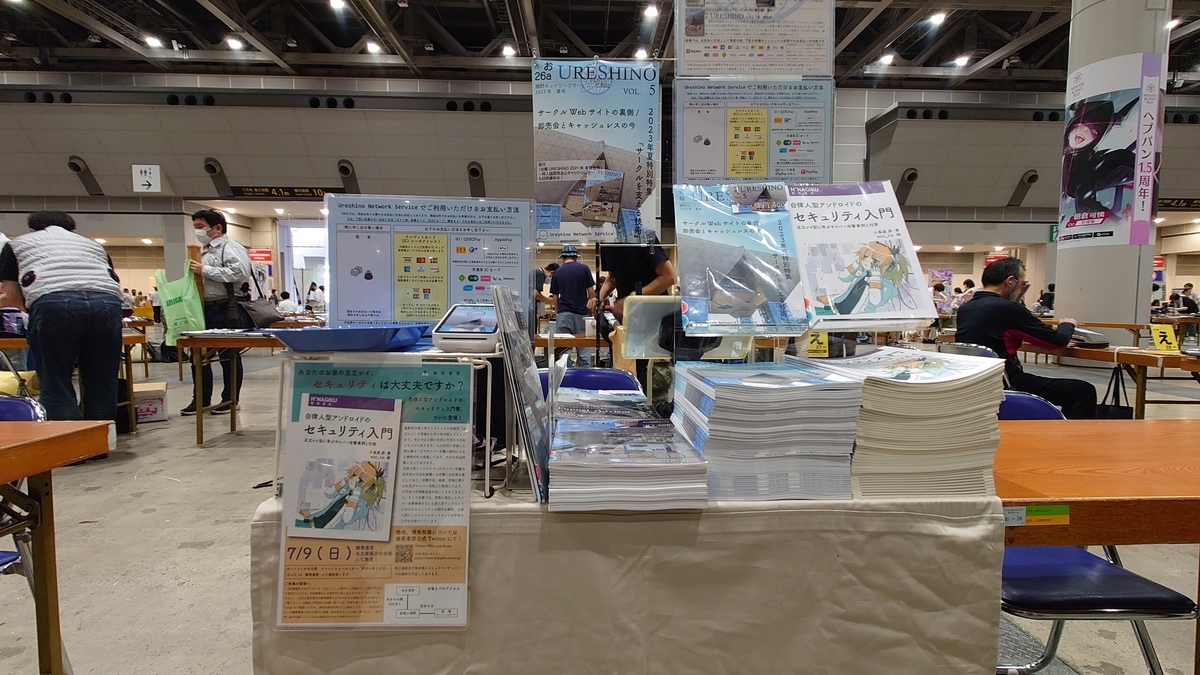
酷暑、時折ゲリラ豪雨の中、多数の方にお越し下さりありがとうございました!
今回の本は「Webサイト構築」と「キャッシュレス」の両方の話を書かさせていただきましたが、それぞれ興味をお持ちの方にお手にとっていただけ、嬉しい限りです。
特にキャッシュレスの方は既刊も一緒にお手にとって下さる方が多数いらっしゃり、本当にありがとうございました。
また、委託の「自律人型アンドロイドのセキュリティ入門」も(目論見通り?)多数の方にお手に取っていただけ、大変嬉しい次第です。ありがとうございました!
何れも通販しておりますので、当日会場でお手に取れなかった方は是非通販をご利用下さい。
C102、暑かった……
とても暑かったですね……。気温、湿度、人の多さ、何もかもが暑く、スペースに戻って来た私はヘトへトでした……。
ほとんど売り子さんに対応してもらってしまい、申し訳ないの極み。
ただ、明らかにこれまでより多くの方が会場を巡っていまして、やっと人が戻ってきたな……と感無量です。技術系サークルとしては、会場に立ち寄る人の総数が増えてくれないことには、目に留まらないので。
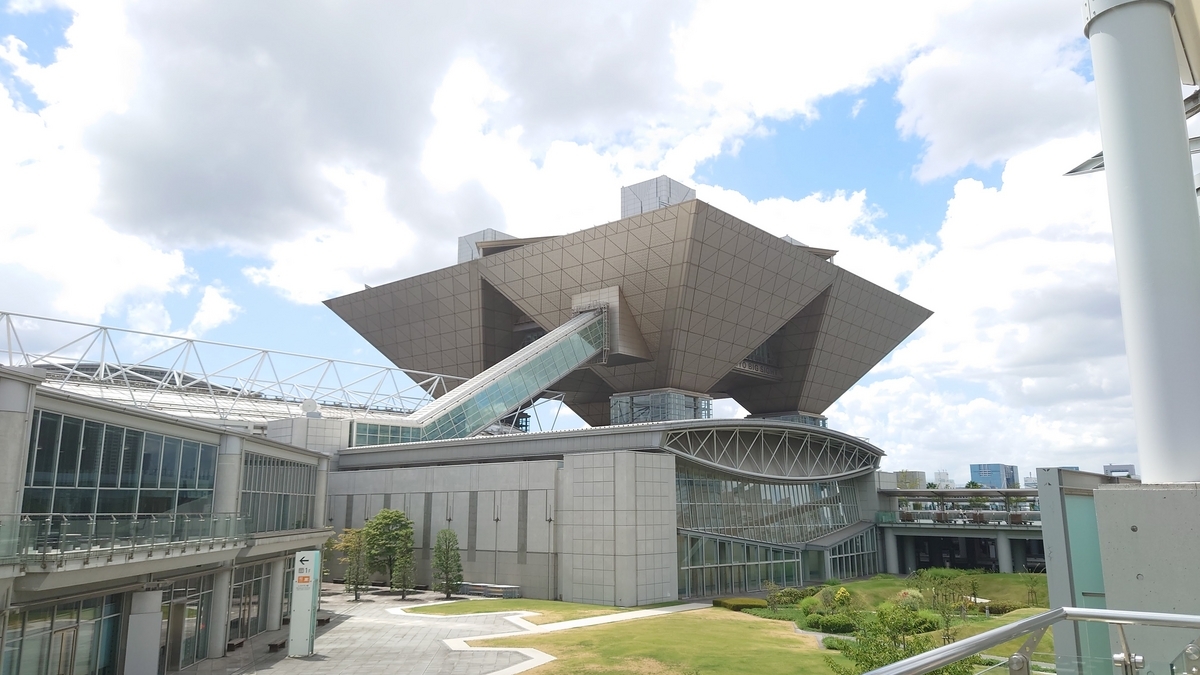
しかし、昔(コロナ前)はもっと激しく動き回った後もスペースで一人売り子やれていたはずなのに、すっかり厳しくなってしまいましたね。体力が落ちてしまって悲しい限りです。
冬は多少マシなので、スペースでもっとゆっくりできる……はず!
C103の予定

C103申し込みました。C103は2SPで申し込みました。だいぶ今回机の上が辛くなっていたので……というのと、上手くいけば次は展示をやりたいな、と思っているので。奮発しました。
こちらは当落発表をお待ち下さい。
C102、参加します。
TL;DR
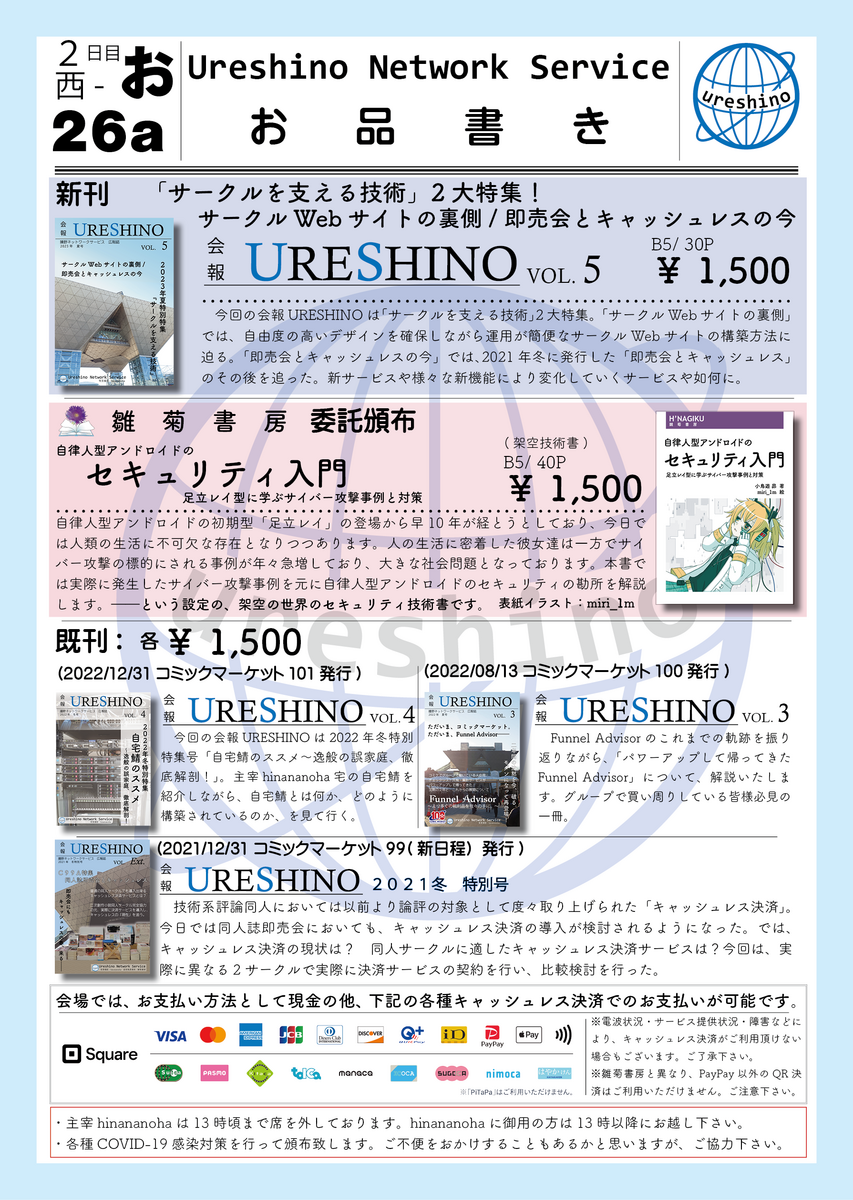
新刊あります。キャッシュレス使えます。
今北産業
- 2日目 西お-26a 「嬉野ネットワークサービス」でお待ちしております。
- 新刊は「サークルWebサイトの裏側」として、Headless CMSで作るサークルWebサイトの話と、「即売会とキャッシュレスの今」で、昨今の即売会キャッシュレス事情(アップデート)を書きました。
- 別名義(二次創作)のサークル「雛菊書房」で作った架空世界のセキュリティ技術書も委託頒布します
今回のお話
今回は「サークルを支える技術特集」として、「サークルWebサイトの裏側」と「即売会とキャッシュレスの今」の2本立てです。
委託頒布「自律人型アンドロイドのセキュリティ入門」
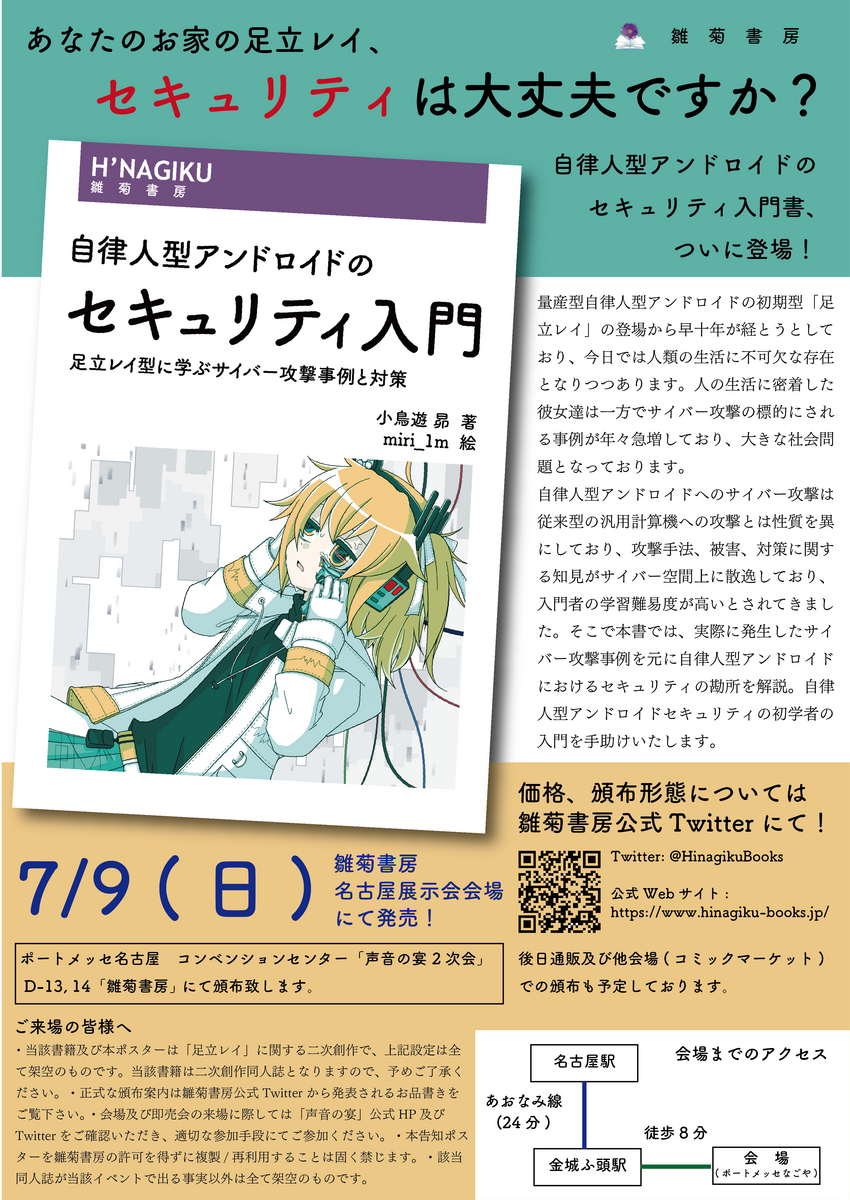
自律的に行動する二足歩行型のヒューマノイド(ここでは「自律人型アンドロイド」と定義してます)が普及した未来における、自律人型アンドロイドに対するサイバー攻撃事例とその対策について解説した入門書……という設定の架空セキュリティ技術書です。
一応セキュリティでご飯を食べてたり食べてなかったりしてるので、実際どうなるだろうか、と思いながら書いた一冊なので、嬉野ネットワークサービスにくる方でもお楽しみ頂ける本かと思います。こちらも併せてどうぞ。
既刊について
既刊は、冬コミ既刊「会報URESHINO Vol.4」、昨年の夏コミ既刊「会報URESHINO Vol.3」及び2021年冬の「会報URESHINO 特別号 同人誌即売会とキャッシュレス」の3種を持ち込みます。
なお、冬コミ既刊「会報URESHINO Vol.4」は残部が数部のみですので、お求めの方はお早めにお越し下さい。
キャッシュレス対応について
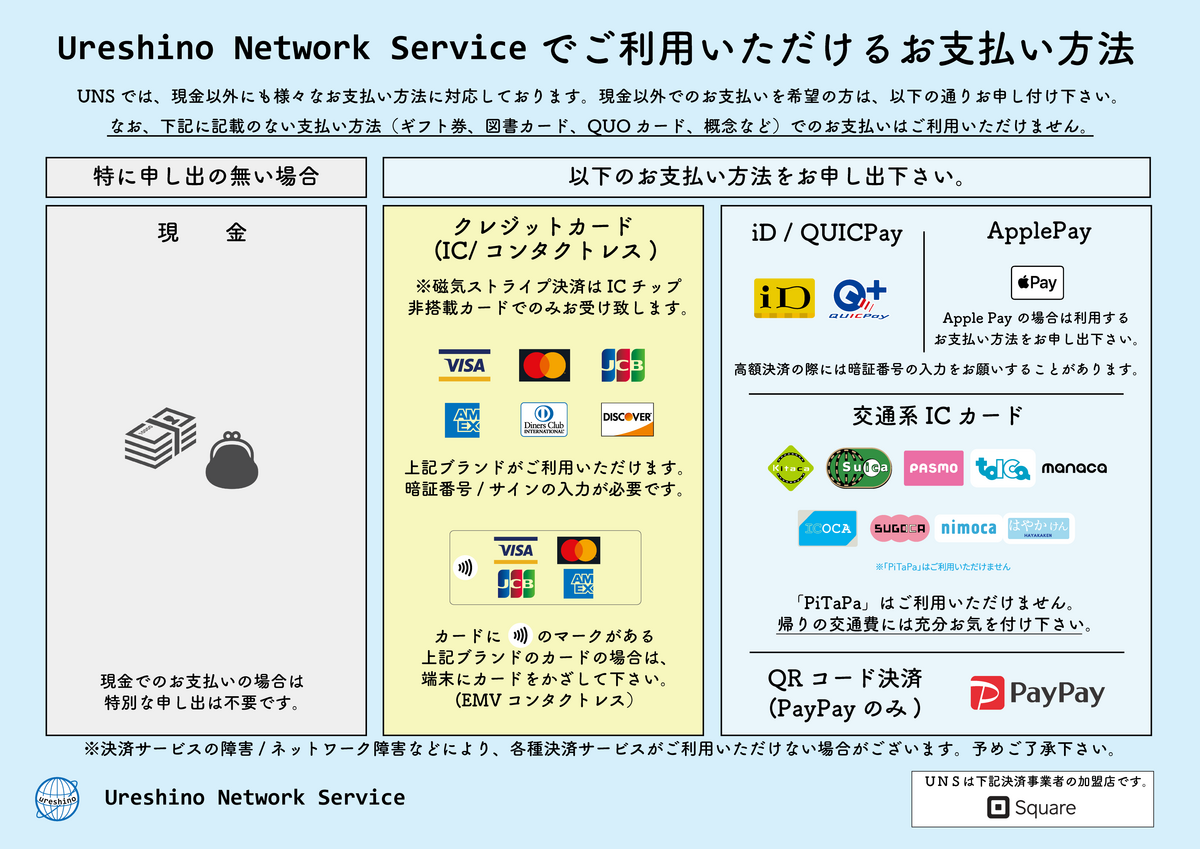
今回より、PayPayが使えるようになりました。バーコードを皆様に読み取って貰うタイプで、金額入力が不要(勝手に指定される)タイプです。今回の新刊に書いたSquareの新機能もお見せできればと思いますので、是非よろしくお願いします。
その他
hinananohaはおそらく13時くらいまでビックサイトのあちこちを縦横無尽に走り回っているので、私に用事がある方は13時以降にお越し下さい。
去年の夏は台風が直撃し、今年も直撃 or 酷暑の予想でどっちに転んでも地獄、な夏コミですが、皆様水分補給だけはしっかりよろしくお願いします。
コミックマーケット101、お疲れ様でした!
TL;DR
新刊、完売しました!
— hinananoha@C101 2日目西さ-09a (@hinananoha) 2022年12月31日
ちょっと予想外に爆速で消えたので、何らかの方法で再販できればと思います。 pic.twitter.com/lm9ameJVQU
14:30ごろに新刊が完売しました。
……いや、あの、いつもより多く刷ったんです。信じて下さい。
Twitterの反応が良かったから多めに刷ったけど「これは調子乗ったかなぁ~」って思ってたんです。
完売するなんて思ってなかったんです……
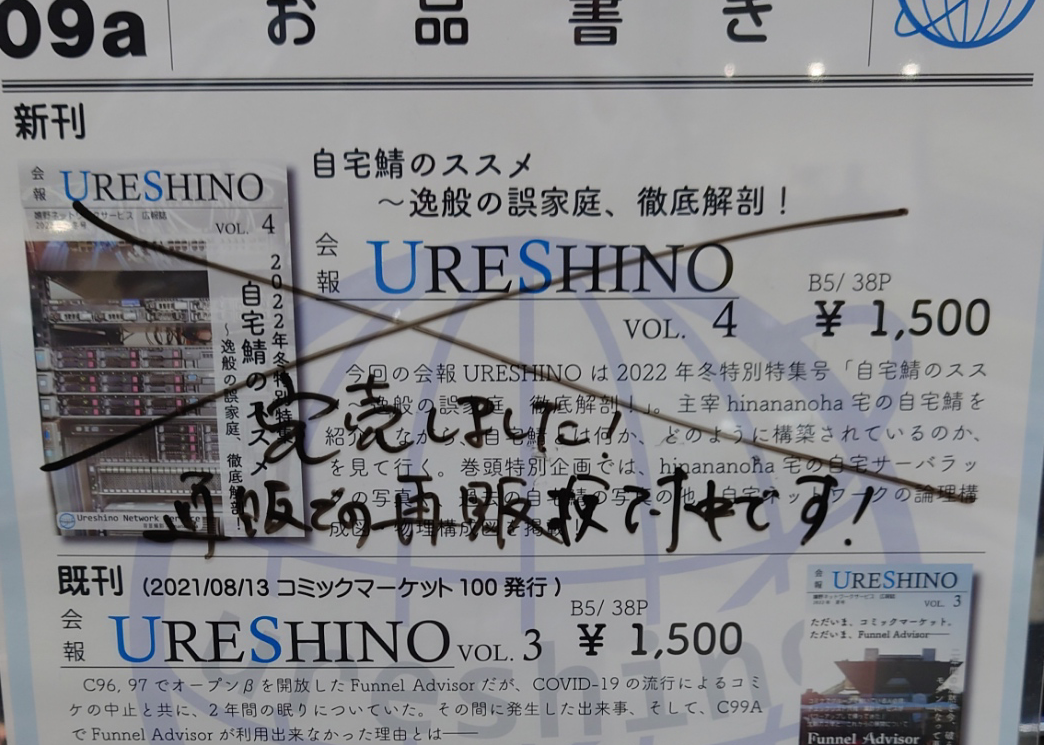
完売後も人いっぱい来たので、今再版 & 書店委託(メロブ)の準備してますので、お待ち下さい。
【2023/01/03 追記】
新刊の通販、予約開始しました! 既刊についても今予約準備中ですので、よろしくお願いします。
https://www.melonbooks.co.jp/detail/detail.php?product_id=1798788
既刊についても、以下で通販予約開始しております。
Vol.3(Funnel Advisor特集、C100):
https://www.melonbooks.co.jp/detail/detail.php?product_id=1799166
2021冬特別号「同人誌即売会とキャッシュレス」:
https://www.melonbooks.co.jp/detail/detail.php?product_id=1799165
冬コミお疲れ様でした!
設営完了しました!本日はよろしくお願いいたします。 pic.twitter.com/DkU6SZyA3J
— hinananoha@C101 2日目西さ-09a (@hinananoha) 2022年12月30日
あけましておめでとうございます。そして、冬コミお疲れ様でした。
今回、Ureshino Network Serviceでは、ちょっと趣向を変えて「自宅鯖本」を作ってみました。
私が学生時代、Dell Optiplex 755で建てた録画鯖から初まり、今の19インチラック『逸般の誤家庭』になるまでの話や、今の自宅鯖環境の構成などをつらつらと書きました。
私は自分の買物のため、13:30頃までスペースにはいなかったのですが、私が戻って来たときには既に新刊の残部は私の予想の半分以下になってました。
売り子曰く、「なんか常にお客さんが来てて休む暇がなかった」とのこと。今この記事を書きながらSquareの売上データを確認しているのですが、本当に朝から昼までお客さんが途切れてなく、びっくりしました。
技術系の評論島なうえ、今回はおそらく「主戦場」の男性向け系のサークルは東館ということで、午前中はまずはそっちいくでしょ、という私の予想は見事はずれました。
お陰様で、びくびくしながら多めに刷った本が完売しました。嬉しい反面、「それならもっと刷ったぁ~~~~!」という悔しさもあります。
完売はめでたいんですが、実は少し(十部程度)余ってそれを通販に出すくらいがちょうど良いんですよ。なんならそのつもりで計画していたので、今あわあわしています。
とはいえ、それだけ多くの方の目に留まり、お手にとって頂けたということで本当にありがとうございました。
この新刊が生まれたきっかけ
今回の新刊は本当はFA本 + コピ本かなにかで自宅鯖本、の予定でした。しかし、あまりにも忙しくてFAの開発の方が進まなかったため、どうしようか、と思っていたのですが。
再マウント完了(なお一番上の白いのと、下の緑色のディスクエンクロージャの上にある2Uのサーバはデータ移行終わったら取り出す pic.twitter.com/amMhA8xRNk
— ひなっち【2日目西さ-09a】@C101→コトフェス→チェビフェス (@156million) 2022年12月9日
ちなみに現在の配線図 pic.twitter.com/6HeUZMyLuL
— ひなっち【2日目西さ-09a】@C101→コトフェス→チェビフェス (@156million) 2022年12月12日
バズ、という程ではないですが、それでもかなりこのあたりのツイートへの反応がすごくよかったのを見て、「もしかして、需要ある……?」と思いまして、今回の新刊はこちらの話に全振りすることにしました。
まあ、予想は大当たりで、Twitterで見て来ました!という方以外にも、この圧のあるポスターに引き寄せられた方がいっぱいいたようで、大変嬉しい限りです。
スペースポスターもパワーな感じにした pic.twitter.com/co75bVumcT
— ひなっち【2日目西さ-09a】@C101→コトフェス→チェビフェス (@156million) 2022年12月24日
今後の通販の予定
というわけで、既刊はまだあるのに新刊が完売したという不思議な状態になりましたが、完売後も「欲しかった」という方が多数いたり、そもそも通販で買う予定だった方などもいたようなので、増刷して通販をすることにしました。
また、前回までは通販はBOOTHでの取扱でしたが、今回よりUreshino Network Serviceの紙の頒布物は全てメロンブックスさんの書店委託で実施しようと考えています。
今、諸々手続き中ですので、情報が出るまで今しばらくお待ち下さい。
なお、電子版も準備中で、こちらはおそらくBOOTHにて頒布します。こちらもメロブにしても良かったのですが、専用プラットフォーム上で読めるやつみたいなので、個人的にあまり好きではなく……。
上記紙の本の通販の販売開始のタイミングに合わせて電子版も頒布開始する予定です。
今年の予定
今年こそは、FAやサークルDBの開発を進めていきたいですね。
来年の夏コミはそういう話を本に出来ればいいな、と考えています。ただ、仕事が激務 of 激務なので、それが心配です……。
今年もよろしくお願いします!!!
今年壊れたものたち
この記事なーに
この記事は whywaita advent calendar 10日目の記事です。
adventar.org
昨日はmake_now_justさんの実録! k8sに自作のライブラリが採用されるとどうなるかでした。
こんなひょんなことで採用されることもあるんだなぁ、というのと、案外採用されたからといって何かあるわけではないんだなぁ、という学びを得ました(?)。
さて、whywaitaと言えばインフラやガジェット(?)、というわけで今年壊れた(壊れかけた)モノたちの話をします(と言ってとりあえず貴重なwhywaita要素を回収する)。
というのも、今年なんか色々とでかいモノが連続して壊れて、厄年かな?という有様なので……なんかこう、厄落としです……。
壊れたものたち
UPS関連
メインマシン用のOMRON BN50TのPowerAct Pro用USBポートが死んだ
— ひなっち【通販中】@C101→コトフェス→チェビフェス (@156million) 2022年2月10日
PowerAct Pro(Master Agent)がアンインストールできなくてファファファファファになってる(Slave Agentに変えたい)
— ひなっち【通販中】@C101→コトフェス→チェビフェス (@156million) 2022年2月11日
なんかアンインストーラが壊れたっぽい
— ひなっち【通販中】@C101→コトフェス→チェビフェス (@156million) 2022年2月11日
いくつか持っているうちのOMRONのUPSの管理ツール周りが壊れました。USBポートの故障だけでなく、アンインストーラーも壊れたせいで、なんか諸々ちゃんと動かなくなってしまい、色々諦めたやつです。
この時はまだグラボを買い換えてなく、メインのUPSがこいつだったので大変困りました。
なお、今はグラボ買換によって消費電力バカ食いになったメインマシンはAPCのRS1200VAに移して、OMRONのは仕事用のPCとNW機器だけになったので、まあいっか、してます。
ま、でもあと数年でバッテリーも寿命だし、買換かもですね。
MySQL Server
【悲報】我が家のzabbix serverのmysql serverが突然の死
— ひなっち【通販中】@C101→コトフェス→チェビフェス (@156million) 2022年6月16日
これに関しては、頑張って格闘してMySQLからレコードを救い出した話を書きました。
kokura.hatenadiary.jp
こいつの原因は、Zabbix Serverが動いているマシンは電源が単一系のみで、なおかつ絶妙にコンセントが緩い & RAIDカードのWrite Cache Batteryがよく分からん理由で認識されていないせいで、緩くなって落ちた瞬間に書き込みが走って死んだんだと思います。
これの復旧は本当に骨が折れた……。この後、スレーブサーバをVMに建てて少なくともDBぶっ壊れても直前には戻れるようにしました。冗長系は大事。whywaitaもそう言っていたと思います。……って数年前のwhywaita advent calendarでも言いましたね。
何も学んでない……
それはそれとして、MySQL ServerのInnoDBが壊れたときにどうすればいいかは普通に知見だったので、(生かされたくは無いけど)生かしていきたいですね。
食洗機
(ツイートはなし)
就職した年に買った食洗機が、排水時にお漏らしをするようになって買い換えました。排水時のお漏らしのせいでシンクが水垢でまっ白になっててこれを落とすのには大変苦労しました……。3年持ったのでまあいいとしましょう。
今回は分岐水栓が必要なタイプのパナソニックの食洗機を買いました。やっぱタンクに毎回水入れなくていいの楽だわ……。
食洗機はマジでQoL爆上がりするので独り暮らしだろうとなんだろうと全人類買って欲しい。最近はスリムなタイプのタンク式も増えたし、いいぞ。
メインPC
これは壊れたというか壊れかけたというか結局何が原因かわからなかったやつです。
まってまってまって pic.twitter.com/oTc796I8Gr
— ひなっち【通販中】@C101→コトフェス→チェビフェス (@156million) 2022年10月10日
突 然 の 死
この事件はまあまあ面倒なタイミングで起きた事件で、
・メモリを増設した
・Windows 11を22H2にアップグレードした
・データ保存用とバックアップ用のディスクがセクタ異常が増えすぎてやばいので交換しようとしていた(ディスクはまだ届いてない)
という状態で発生しました。そのため、原因の特定にめちゃくちゃ時間がかかり、
・普通にBCD(ブート領域)が壊れただけか?とブート領域を頑張って修復しようとした
・22H2のアップグレードの過程でなんか変なの踏んだか?とクリーンインストールを試みる
・クリーンインストール中にWacomの液タブのドライバを追加したタイミングでエラーが出たのでWacomドライバのせいかと判断する
・21H2に戻してクリーンインストールするもWacom関係無くBSoD発生してわけわかめになる
・増設したメモリを外したらどうにか動いたので初期不良としてメモリの返品交換をする
・交換したメモリも挙動がおかしく、スロットを変えたらなんかとりあえず動いた……?
という、なんかもやもやー……っとした終わり方をしました。正直再発しそうで怖い……あれはなんだったんだろう……。
サーバのディスク
まあ、よくあるよね。こっちはRAID1+HS構成だったので勝手に修復されました。えらい。
我が家のネットワークのコアスイッチ ← new!
昨日壊れました(新鮮)
掃除をするために一旦全ての機器を全部落として掃除をして、復旧しようとしたらコアスイッチだけ上がらなくなりました。
ファンは動いているけどランプが一切付かないのでおしまいだと思います。ドウシテ……ドウシテ……
コアスイッチなんだから冗長構成にしろよ!と言われるかもですが、ルータが対応してないパターンなどもあり、難しい……などと。
色々壊れました
だいたい何か壊れるときって壊れて欲しくないタイミングで壊れるんですよね。
これを見ている卒論・修論・博論を控えた各位はPCを100台くらい準備していつどのPCが壊れても論文執筆が継続できるように万全の準備をしましょう(?)
ただそれにしても今年色んなものが壊れすぎなので、ちょっと呪われてんじゃね?と友人各位に言われているので、来年の1月はどこかでお祓いでも受けてこようかなと思います。
明日は nersonu さんの「お前の知る whywaita はまだ whywaita ではない」です。
本当のwhywaita、楽しみにしています(?)
コミックマーケット100、参加します
TL;DR
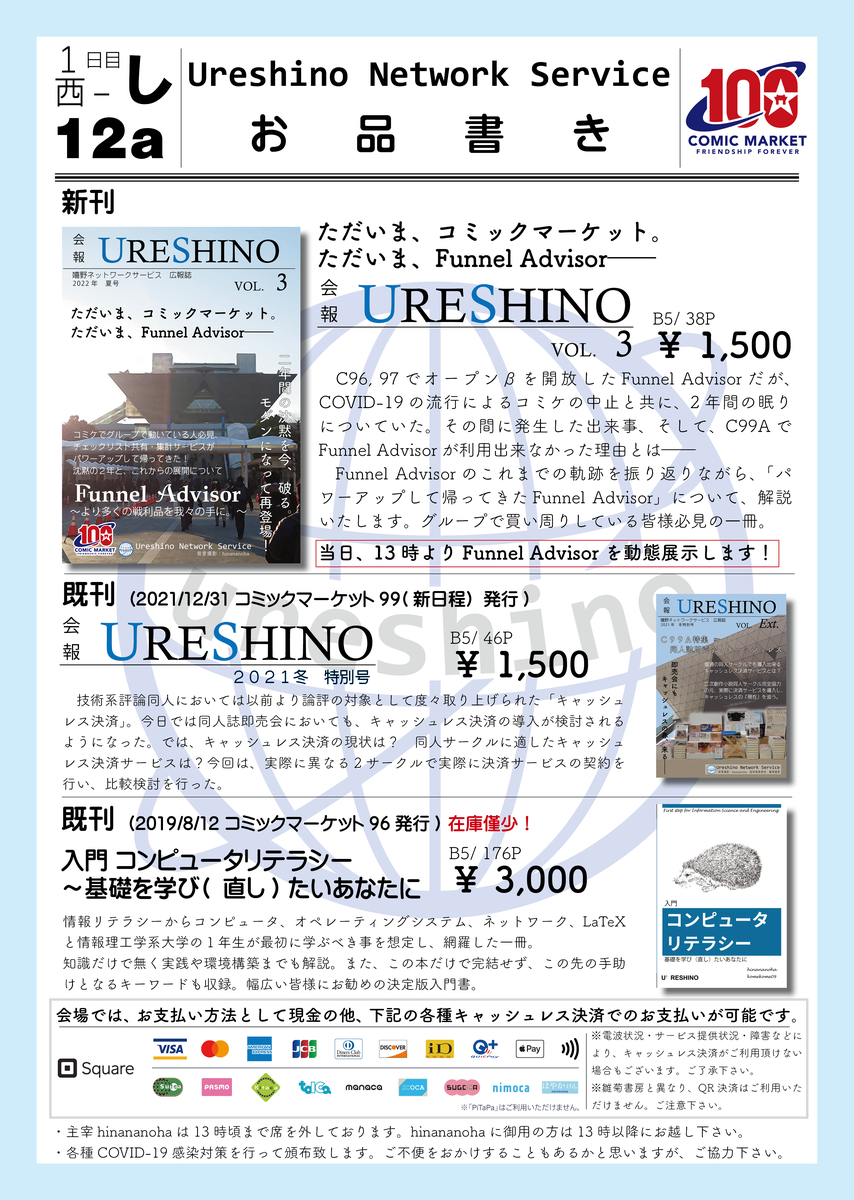
新刊が出ます!今回もキャッシュレスは使えます!
今北産業
- 1日目 西し-12a「嬉野ネットワークサービス」でお待ちしております。
- 新刊あります、Funnel Advisorについての本です。
- 13時頃から「新 Funnel Advisor」の動態展示します
まさかの誕生日席
というわけで、記念すべきC100、無事当選しまして、新刊も無事できましたので、新刊ひっさげて参加します。
今回はなんとんですね、誕生日席です!しかも、疑似誕生日席(※島全体の列の中にある、島のブロックの端っこ)ではなく、ちゃんと誕生日席です!嬉しい!
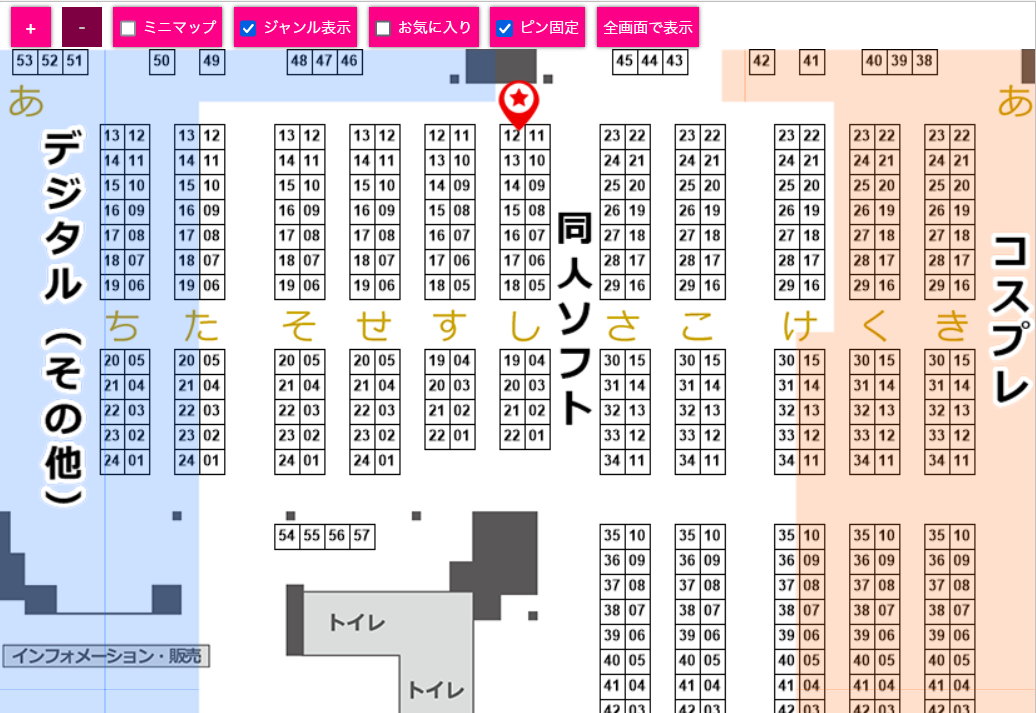
ただ同時に、こんないい場所に配置されて新刊落としたとか草枯れるので、どうにか出さねば、と必死になって出しました。本当に出て良かった……*1。
今回のお話
今回の本は、「Funnel Advisor」に関する本です。
実は(ご存じかと思いますが)、C99AでFunnel Advisorは運用していませんでした。多分今、URLにアクセスしても何も表示されないはずです。
これには、コミケが中止・延期されている2年間に色々あった関係で、再開できなかったから、という状況がありました。
今回の本は、そのあたりの話を掘り下げて、その上で新しい「Funnel Advisor」を今、再開させようとしている話を書きました。
当日は、実際に今開発中の新「Funnel Advisor」の動態展示をする予定です。
こちら、13時以降に実施しますので、見たい方は、他の買物を一通りして、コンビニかガレリアのレストランで腹ごしらえをしてから、西し-12aにお越し下さい。
既刊の頒布について
既刊は、C99Aの新刊「会報URESHINO 2021冬特別号」と、「入門 コンピュータリテラシー」を持ち込みます。
後者は残部が残り数部ですので、お早めに!
キャッシュレス対応について
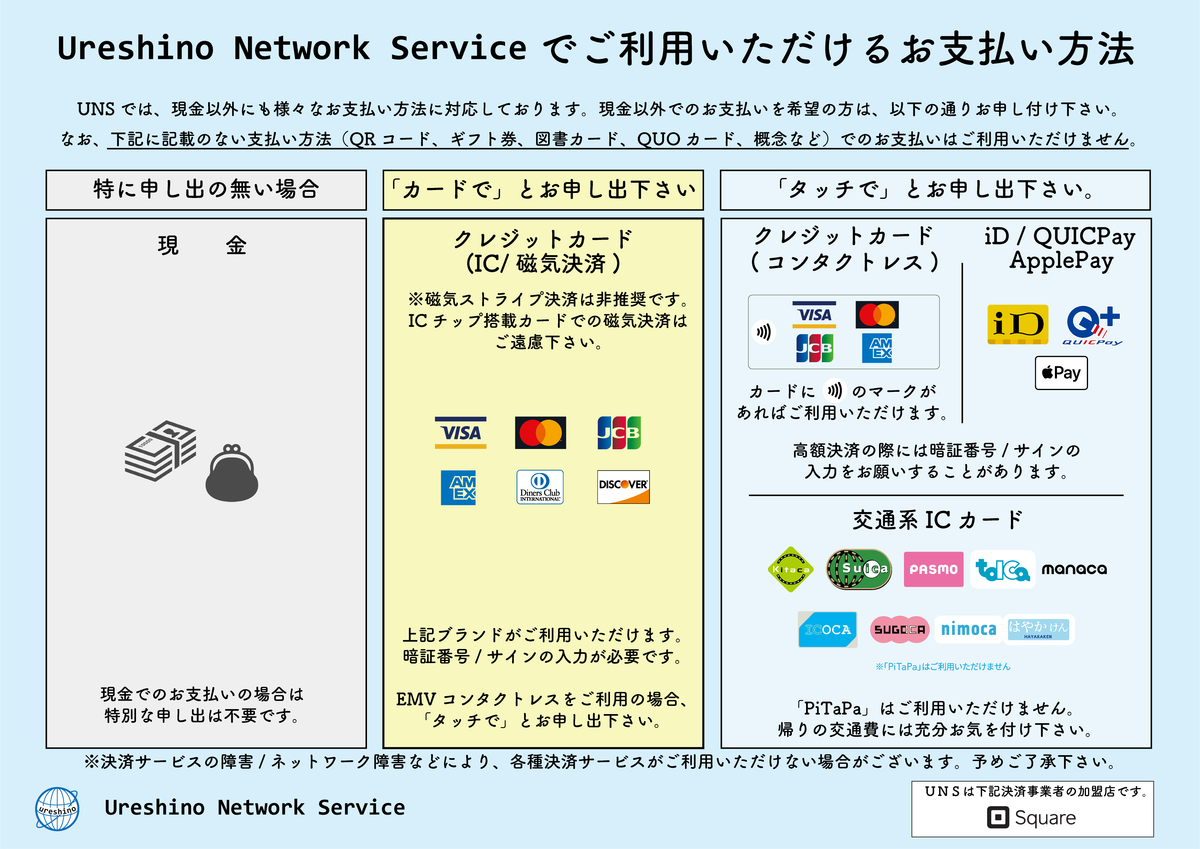
こちら、前回同様、Squareでの対応になります。今回は、Square Terminalが、iPadのSquare POSアプリとの連携に対応したとのことで、その連携の様子が見せられればと思います。
三年ぶりの夏コミ!
夏コミは三年ぶりです。今年の夏は殺人的な酷暑な上、あの「地獄」を三年も経験していない我々の身体は鈍りに鈍りまくっています。どうか、暑さ対策はしすぎてしすぎるほど、万全に備えてお越し下さい。
私も、ポカリの粉末を2箱買いました。
*1:印刷所の締切が8/6 17:00で、8/1時点でほぼ真っ白でした。
